Installation
Requirements
Magento 2.4.x (Open Source or Adobe Commerce), PHP 8.1–8.5. Works with any search engine Magento supports (OpenSearch, Elasticsearch or MySQL). Compatible with Hyvä and Luma themes. Requires the free codingrow/module-core. No AI provider or API key is needed — the module is pure catalog search.
Setup
Install via Composer, enable the module and run the standard upgrade/compile:
composer require codingrow/module-live-search-autocomplete
bin/magento module:enable Codingrow_LiveSearchAutocomplete
bin/magento setup:upgrade && bin/magento setup:di:compile
bin/magento cache:flush
Then go to Stores → Configuration → Codingrow → Live Search & Autocomplete, paste your license key, set Enable = Yes and flush the cache.
Configuration
All options live under Stores → Configuration → Codingrow → Live Search & Autocomplete.
| Setting | What it does | Default |
|---|---|---|
| License Key | The license key issued for this domain. Accepts a single-module key or a Codingrow subscription key. The autocomplete does not render without a valid license. | — |
| Enable | Turns the storefront autocomplete on or off. | No |
| Minimum characters | How many characters the customer must type before suggestions start. | 2 |
| Max products shown | Maximum number of products in the dropdown. | 6 |
| Show product image | Shows the product thumbnail next to each suggestion. | Yes |
| Show price | Shows the price (and any discount) for each suggestion. | Yes |
| Only in-stock products | Hides out-of-stock products from the suggestions. | No |
| Use AI Personal Shopper synonyms | When the AI Personal Shopper module is installed, also use its self-learning synonyms. | Yes |
| Accent color | Color used for prices and the "see all results" link. | #2563eb |
Uninstall
Set Enable = No to switch it off without removing anything, or remove the module entirely:
bin/magento module:disable Codingrow_LiveSearchAutocomplete
composer remove codingrow/module-live-search-autocomplete
bin/magento setup:upgrade && bin/magento cache:flush
Search & synonyms
How it works
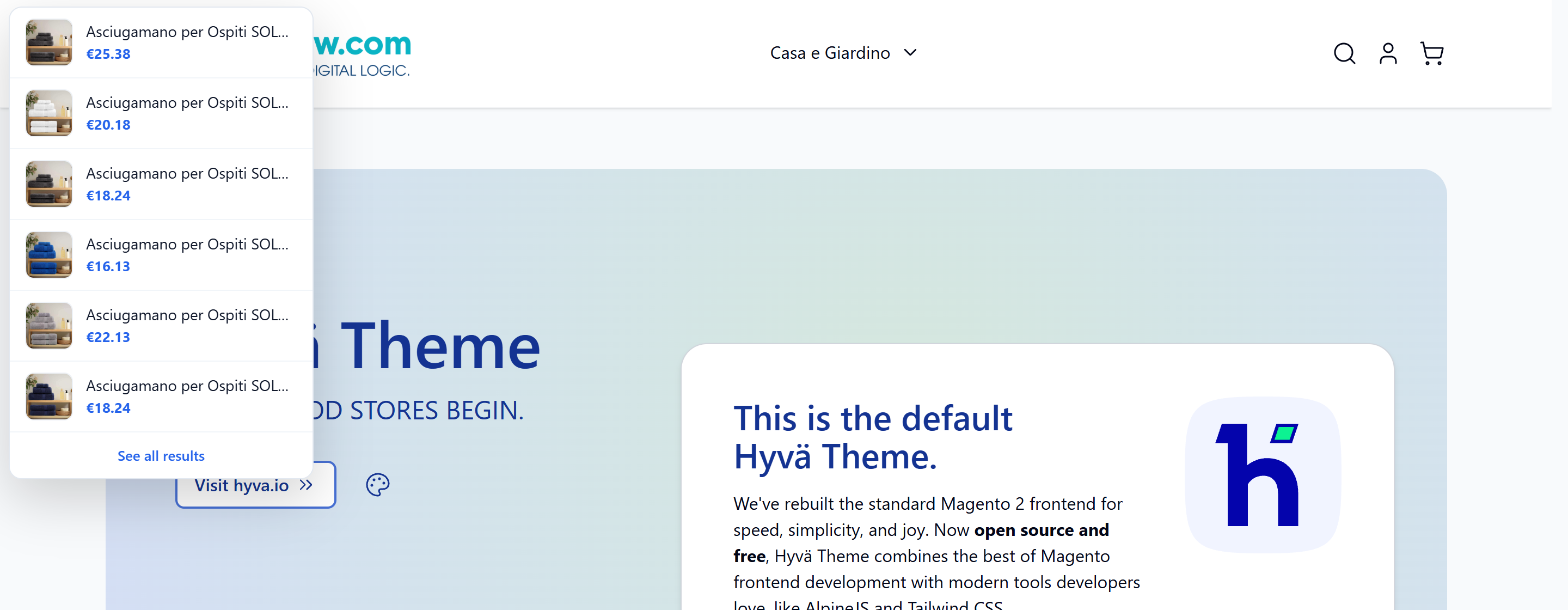
A small, theme-agnostic script attaches to your existing search input (it detects Hyvä and Luma search bars automatically). As the customer types, it debounces the input and asks the module for matching products, then renders a dropdown with a thumbnail, name, price and any discount for each result, plus a "see all results" link to the full search page. Every result links straight to the product page. Results respect product visibility, stock and store scope.
Performance
Suggestions are fetched from Magento's own indexed search engine — the same engine that powers the results page (OpenSearch, Elasticsearch, or MySQL) — via the native quick_search_container request. Because the matching is done by the index and not by scanning the database, response time stays low and does not grow with catalog size. On a live 67,000-product store, suggestions return in about a second and stay flat as the catalog grows.
Extended-field search
Whether the autocomplete searches only the name/SKU or also the description and other fields is controlled by Magento itself, per attribute — not by a module toggle. Under Stores → Attributes → Product, each attribute has a "Use in Search" flag and a search weight. By default name, sku, description and short_description are searchable, so the autocomplete already searches them. To include or exclude a field, or to make one weigh more, change that attribute's search settings and reindex — the autocomplete follows the same configuration as the results page, and stays fast regardless of catalog size.
Native Search Synonyms
The module always uses Magento's native Search Synonyms. Add or edit them from the standard admin at Marketing → SEO & Search → Search Synonyms; the autocomplete picks them up immediately. When a query returns nothing, the module expands it with the matching synonyms and tries again.
AI Personal Shopper synonyms
If the Codingrow AI Personal Shopper module is also installed (optional, soft dependency), the autocomplete additionally taps its self-learning synonyms registry — the regional, dialect and misspelled terms the assistant has learned from real conversations. This makes even "wrong" searches match the right products. Turn it on with Use AI Personal Shopper synonyms = Yes. Without that module, the autocomplete works perfectly on the native synonyms alone.
Usage
How it appears
The dropdown is injected below your existing search bar and styled to stay out of the way of your theme. Each row shows the product thumbnail (if enabled), the name, and the price with any discount; the accent color (prices and the "see all results" link) is configurable. Keyboard navigation (arrow keys and Enter) and mobile layout are handled automatically.
Sticky search bar
Turn the storefront search into a sticky compact header: as the customer scrolls down, a slim bar pins to the top of the page carrying the store logo, the menu, the account and cart links and — most importantly — the search field with the same live autocomplete. Search stays one glance away on every page, the way large marketplaces do it. Theme-agnostic: it works on Hyva and Luma and reuses the native search action, so submitting and autocomplete behave exactly like the normal search.
On desktop the bar is a single row. On mobile it never exceeds two rows — the hamburger menu, logo, account and cart on the first row, the search field on the second — so it fits small screens without pushing content down. It reveals itself once the shopper scrolls past a configurable threshold and hides again at the top of the page.
Enable it under Stores → Configuration → Codingrow → Live Search & Autocomplete → Appearance with Sticky search bar = Yes (with an optional scroll threshold in pixels). The bar also exposes a slot for the AI search button of the AI Personal Shopper module, when installed.


The sticky bar and the content it must not cover
With the sticky search bar on, a compact bar appears pinned at the top of the screen once the customer scrolls past the threshold. Being fixed, it overlays whatever is beneath it — on a product page that is usually the product title, the first line of a buy box the theme keeps in view. It would stay covered for the whole page, not just in passing.
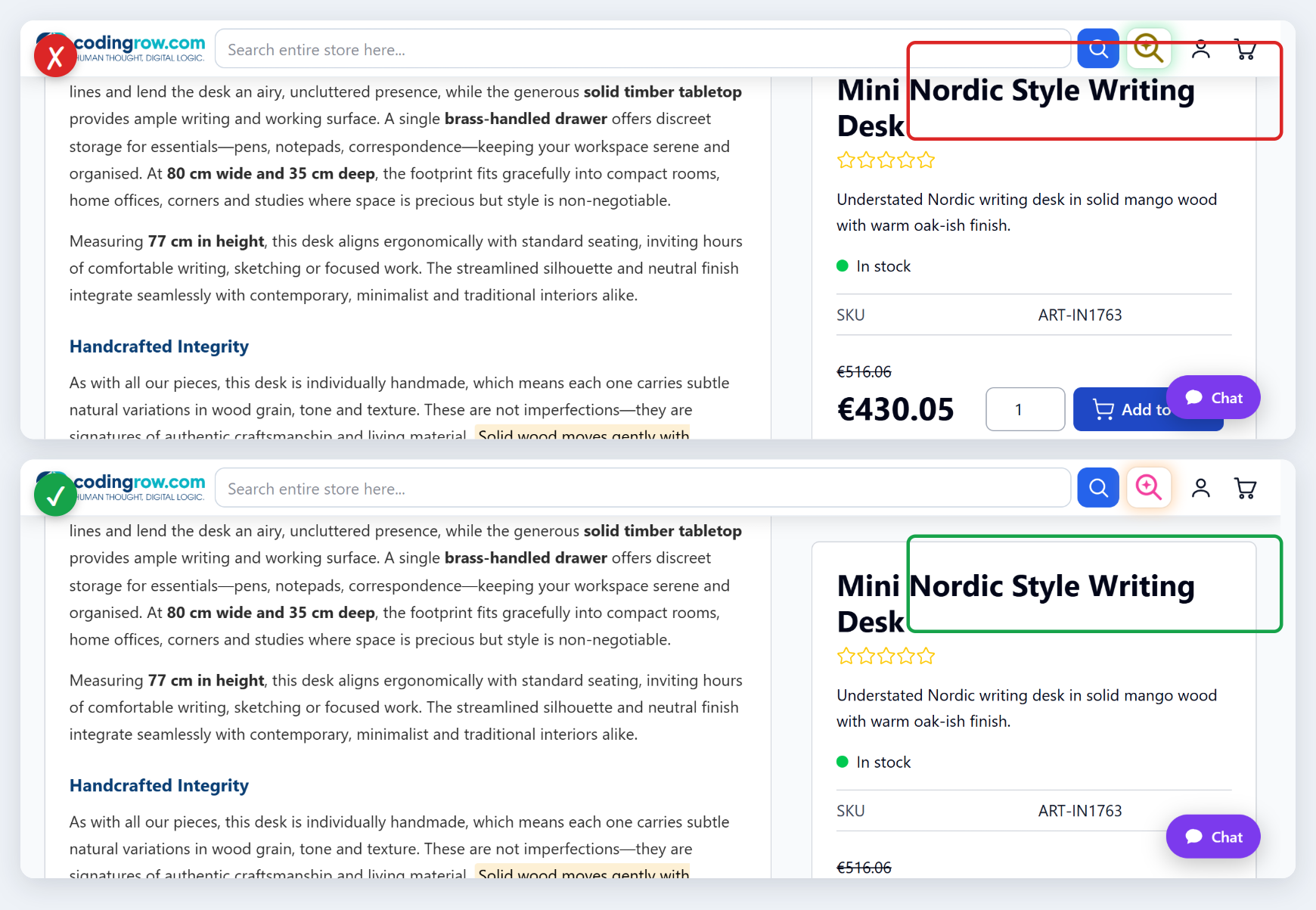
Keep pinned content clear of the sticky bar (on by default) fixes this: the bar publishes its measured height as the --crls-sticky-h CSS custom property on the <html> element — 0px while the bar is hidden — and anything anchored to the top moves down by exactly that amount, then returns to its place when the bar hides. Anchor links land below the bar too. The height is measured, never hard-coded: around 57px on desktop, around 107px below 768px where the search field wraps onto its own line.
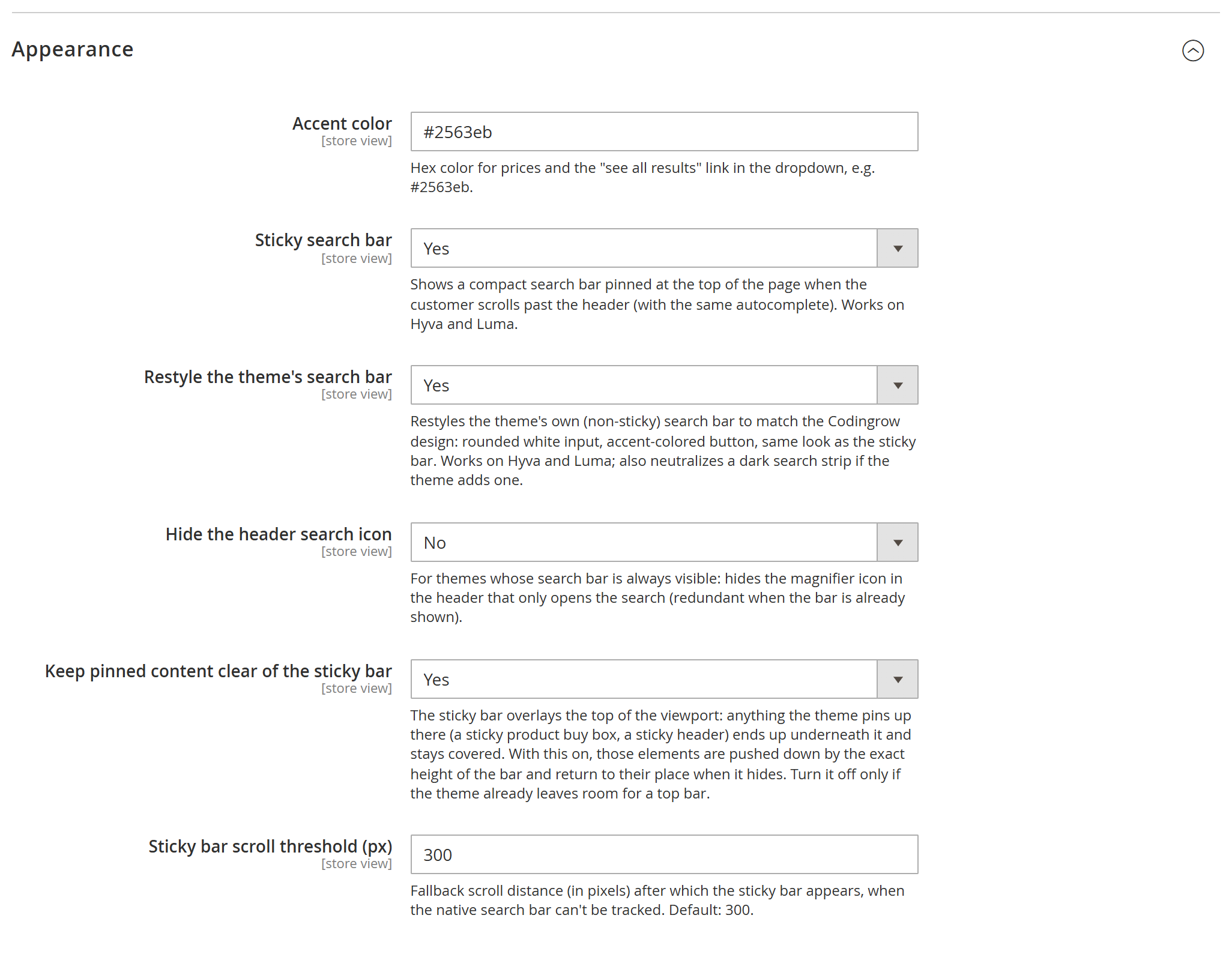
Elements pinned inside a container that actually scrolls are left alone — they are anchored to that container, not to the viewport. Your own templates can read the same property: top: calc(1.5rem + var(--crls-sticky-h, 0px)), whose fallback keeps the original offset where this module is not installed.
License
The module uses a per-domain license (a single-module key, or a Codingrow subscription key that unlocks every Codingrow module). The key is verified locally: it never slows the storefront and never exposes your data. The autocomplete does not render without a valid license. Your license covers the current version plus 1 year of updates & support; you keep using the covered versions forever, and can renew support (−35%) to upgrade to newer releases.
Troubleshooting
| Symptom | What to check |
|---|---|
| The autocomplete doesn't appear | Make sure Enable = Yes, the License Key is valid, and you typed at least the minimum number of characters. Then bin/magento cache:flush. |
| A product that exists isn't found | Reindex the catalog search index (bin/magento indexer:reindex catalogsearch_fulltext) and check the product is visible in search and in stock (if "Only in-stock products" is on). |
| Partial or misspelled words find little | Add native Search Synonyms, or install AI Personal Shopper for automatic learned synonyms. |
| Nothing changed after an update | Run setup:upgrade, setup:di:compile and cache:flush after every composer update. |