Installation
Requirements
Magento 2.4.x — tested on 2.4.9, compatible with previous 2.4.* releases. PHP 8.1–8.5. Compatible with both the default Luma theme and the Hyvä theme (the chat widget renders in an isolated Shadow DOM, so it looks identical on both, with no template changes). Depends on the free codingrow/module-core module, installed automatically. Requires an API key from at least one AI provider (OpenAI, Anthropic, Google or OpenRouter) — billed to you directly by the provider.
Setup steps
- Add the credentials you'll receive by email to
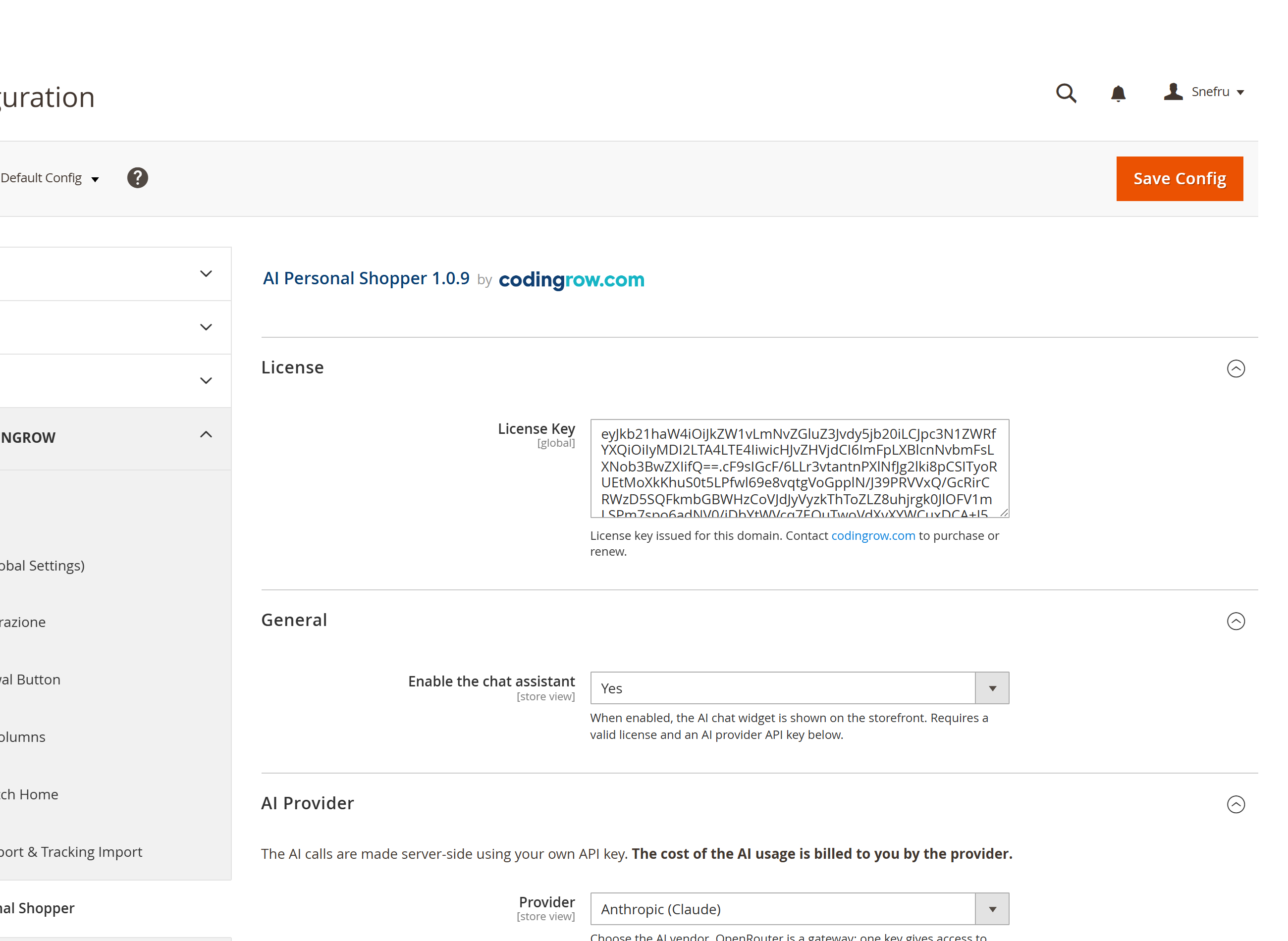
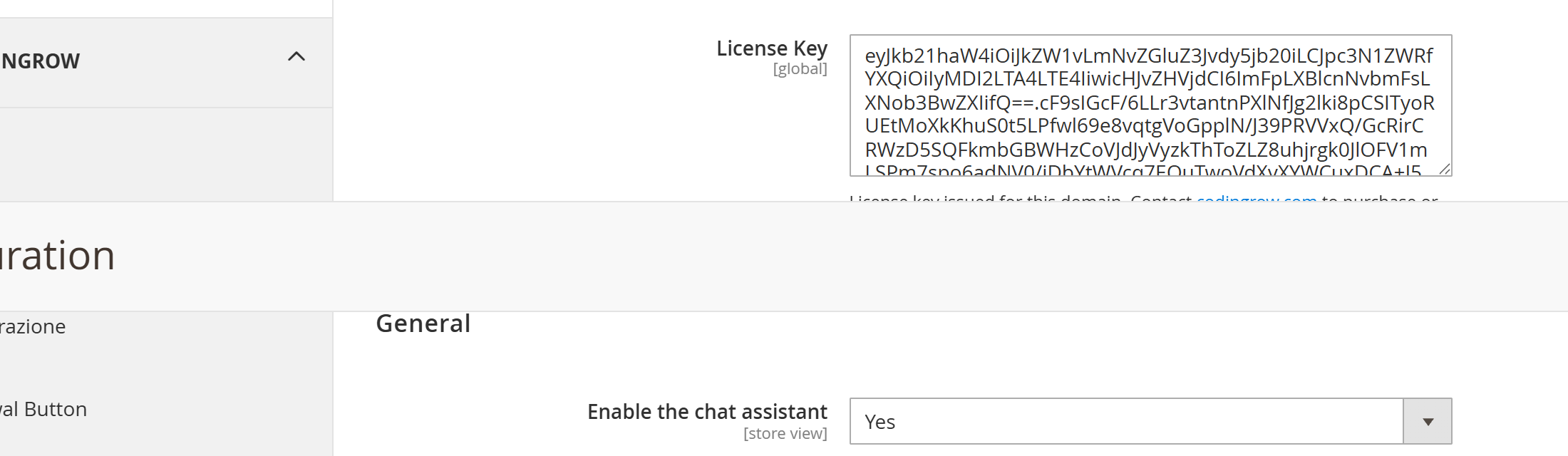
auth.jsonin your Magento project root:{ "http-basic": { "repo.codingrow.com": { "username": "...", "password": "..." } } } composer config repositories.codingrow composer https://repo.codingrow.comcomposer require codingrow/module-ai-personal-shopperbin/magento module:enable Codingrow_AiPersonalShopperbin/magento setup:upgrade && bin/magento setup:di:compile- Paste your license key into Admin → Stores → Configuration → Codingrow → AI Personal Shopper → License → License Key, save, then
bin/magento cache:flush.
Configuration
Open Admin → Stores → Configuration → Codingrow → AI Personal Shopper. Enter your License Key, set Enable to Yes, then review Capabilities. Provider, model and API key are not here: add an AI on the AI Models tab (Codingrow → AI Personal Shopper → AI Models).
| Setting | What it does | Default | Notes |
|---|---|---|---|
| License Key | The license key issued for this domain. | — | Accepts a single-module key or a Codingrow subscription key. The chat does not render without a valid license. |
| Enable | Turns the chat widget on for the storefront. | No | Requires a valid license and at least one AI provider API key. |
| AI Models (separate tab) | Provider, model and API key used for the conversation. | — | Not on this page: they live in Codingrow → AI Personal Shopper → AI Models, the only place the chat reads them from. The AI Provider group that used to sit here was removed in 2.1.0 — its fields no longer had any effect. |
| Agent limits → Max tool rounds | How many times per message the agent may query catalog and orders before answering. | 4 | 1 to 8. Higher = more accurate but slower and costlier. |
| Capabilities | Toggles: product search, order status, promotions, add-to-cart, voice input, self-learning synonyms, human support tickets. | — | Disable anything you don't want the agent to do. |
| Human support | Support email (BCC), response time, ticket prefix, auto-close, notify on resolve. | 24-48 hours | Only used when the Human support tickets capability is on. |
Uninstallation
Set Enable to No and save to hide the widget immediately. To remove the module entirely: bin/magento module:disable Codingrow_AiPersonalShopper then composer remove codingrow/module-ai-personal-shopper.
AI provider setup
Choosing a provider
The assistant works with any of four providers — you bring your own API key, and the AI usage is billed to you directly by the provider you pick. OpenAI (ChatGPT/GPT) offers the broadest lineup; Anthropic (Claude) is a strong fit for an assistant that must stay on-script; Google (Gemini) is competitively priced and fast; OpenRouter gives you one key for dozens of models across providers, handy for comparing cost and quality.
Getting an OpenAI API key
- Sign in at platform.openai.com.
- Go to platform.openai.com/api-keys.
- Click Create new secret key, name it (e.g. "AI Personal Shopper"), and copy it immediately — it is shown only once.
- Add it as a new AI on the AI Models tab (Codingrow → AI Personal Shopper → AI Models) with Provider set to OpenAI, then use Load models to pick the model.
Getting an Anthropic API key
- Sign in at console.anthropic.com.
- Go to console.anthropic.com/settings/keys.
- Click Create Key, name it, and copy the value.
- Add it as a new AI on the AI Models tab (Codingrow → AI Personal Shopper → AI Models) with Provider set to Anthropic, then use Load models to pick the model.
Getting a Google API key
- Sign in at aistudio.google.com with a Google account.
- Go to aistudio.google.com/app/apikey.
- Click Create API key, choose or create a Google Cloud project, and copy the key.
- Add it as a new AI on the AI Models tab (Codingrow → AI Personal Shopper → AI Models) with Provider set to Google, then use Load models to pick the model.
Getting an OpenRouter API key
- Sign in at openrouter.ai.
- Go to openrouter.ai/keys.
- Click Create Key, name it, and copy the value.
- Add it as a new AI on the AI Models tab (Codingrow → AI Personal Shopper → AI Models) with Provider set to OpenRouter, then use Load models to pick the model.
Load models
Once the API key is in place, click Load models under the Model field: the module calls the provider's own model-list endpoint with your key and fills a dropdown with every model your key can actually use — pick from the list instead of typing an id. A manual text input remains available as a fallback for a model id not yet in the list. A link right below the field always points to the correct key page for whichever provider is currently selected.
Budget duration calculator
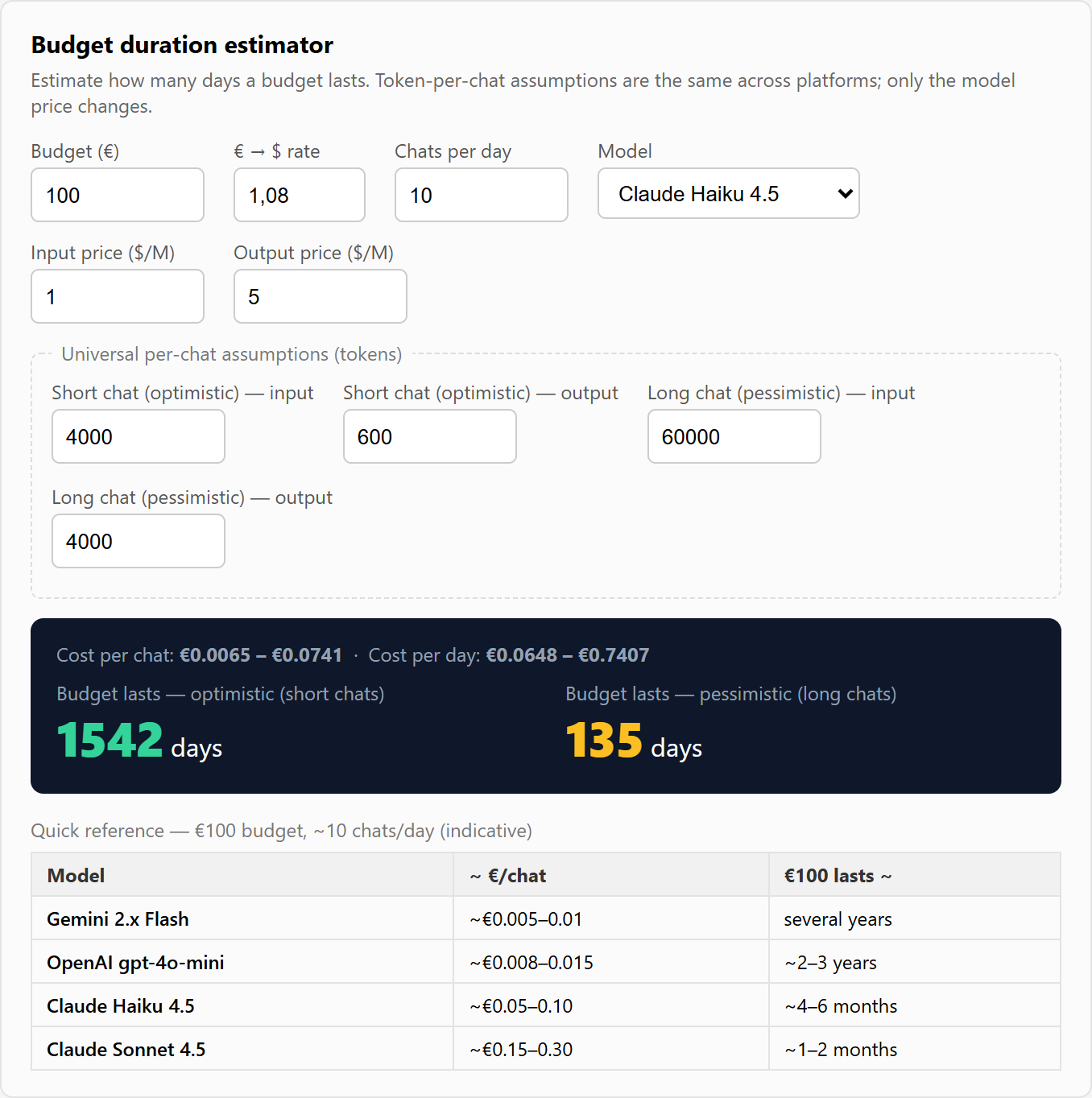
AI usage is billed by the provider per token, so the natural question is how long a given budget will last. The configuration screen answers it directly: right under the API keys sits a small budget calculator. Enter your budget, the model input/output price per million tokens (presets are provided for Gemini Flash, OpenAI gpt-4o-mini, Claude Haiku 4.5 and Claude Sonnet 4.5) and the expected number of chats per day. It instantly shows the cost per chat and how many days the budget lasts in an optimistic scenario (short chats) and a pessimistic one (long chats).
The per-chat token assumptions are the same across platforms — only the model price changes — so the comparison is fair. A quick-reference table shows roughly how far a €100 budget goes on each model at about 10 chats per day. It is a planning aid only; the real cost is always billed by the provider.
Quality vs. cost. The module already gives the model everything it needs to answer and assist — catalog, orders, promotions, categories, synonyms and tools. The quality of the replies then depends on the model you choose: if they do not satisfy you, simply try a different model or provider. Cost follows directly from that choice — but this kind of assistant does not need an expensive, "reasoning" or complex model: a cheap, fast one (a "flash"/"mini" tier) is perfectly adequate.
Budget duration calculator
Estimate how long an AI budget lasts. Token-per-chat assumptions are the same across platforms; only the model price changes.
| Model | ~ €/chat | €100 lasts ~ |
|---|---|---|
| Gemini 2.x Flash | ~€0.005–0.01 | several years |
| OpenAI gpt-4o-mini | ~€0.008–0.015 | ~2–3 years |
| Claude Haiku 4.5 | ~€0.05–0.10 | ~4–6 months |
| Claude Sonnet 4.5 | ~€0.15–0.30 | ~1–2 months |
AI tuning & diagnostics
Every AI in the pool carries its own settings, on its card in the AI Models tab — plus one limit that stays in Configuration:
- Max response tokens (on the AI card) — caps the length of each reply; lower it to keep answers tight and costs down.
- Temperature (on the AI card) — from focused and deterministic to more varied phrasing. Left empty it is not sent at all, which is what the newest model families require.
- Max tool rounds (Stores → Configuration → … → Agent limits) — 1–8, how many times the model may call tools (search, order lookup, …) before it must answer; higher allows more thorough multi-step answers, lower is faster and cheaper.
- Recent AI calls (diagnostics) (AI Models tab) — the last 10 calls to the model with their outcome, error, prompt and response, so when a reply does not arrive you can see why at a glance. With failover on it names the AI that actually answered, not the primary one.
Important note: the quality, consistency and proactivity of the replies depend mostly on the AI model you choose, not just on the module. A cheap, fast model (a "flash"/"mini"/Haiku tier) costs little but is less good at curating the order of the cards, narrowing options down to a few, and proposing pairings/cross-sell; a more capable model (e.g. Claude Sonnet, a GPT-4-class model) follows this logic far more reliably. If the replies don't satisfy you, the first thing to try is switching to a stronger model — cost changes accordingly, use the calculator above.
User guide
Capabilities
Each capability is an independent toggle under Capabilities. Turning one off removes that ability from the agent immediately — nothing is ever implied or inferred beyond what's enabled:
- Product search — natural-language search against the live catalog, returned as product cards (or category cards when the request is too vague for a single product).
- Order status — looks up real order status for logged-in customers, or for guests who confirm order number + email.
- Promotions — the agent is aware of active discounts and can mention or filter by them.
- Read category content — lets the agent read a category's own PageBuilder description (
get_category_info), so buying guides, size charts and editorial copy you already wrote on category pages feed the answer instead of being ignored. - Add-to-cart — lets the customer add a product straight from a card, with a quantity selector, without leaving the chat.
- Voice input — customers can speak their request instead of typing it (Web Speech microphone).
- Self-learning synonyms — records the mapping between a search word that failed and the catalog term that eventually matched.
- Human support tickets — lets the agent open a ticket and hand off to a person when a request genuinely needs one; disabling it means the agent will never propose opening a ticket.
- Closing cross-sell suggestions — when the customer is wrapping up, the agent may add one or two complementary products as a final suggestion before saying goodbye. Off by default; turn it on only if you want that closing nudge.
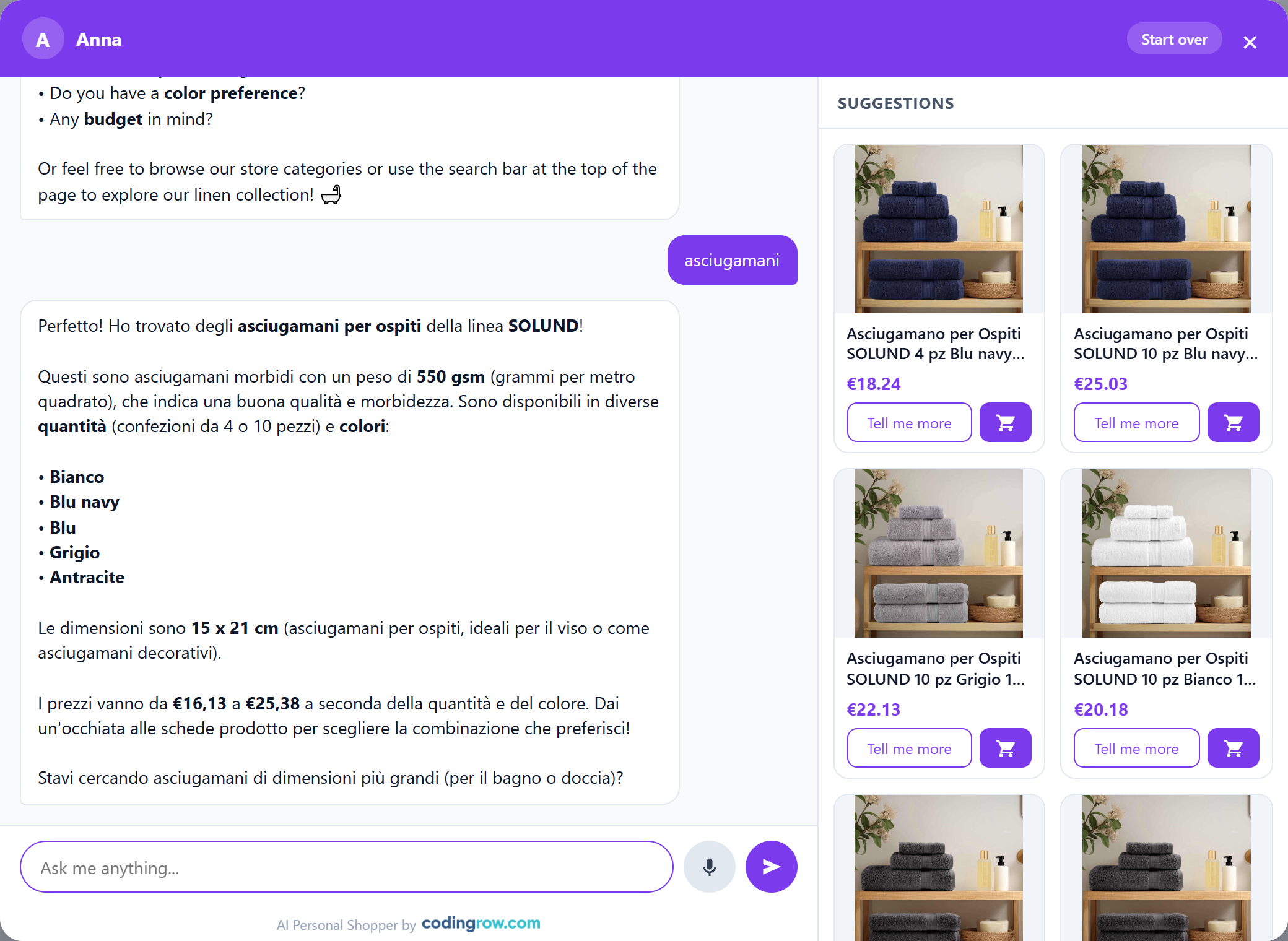
The product experience
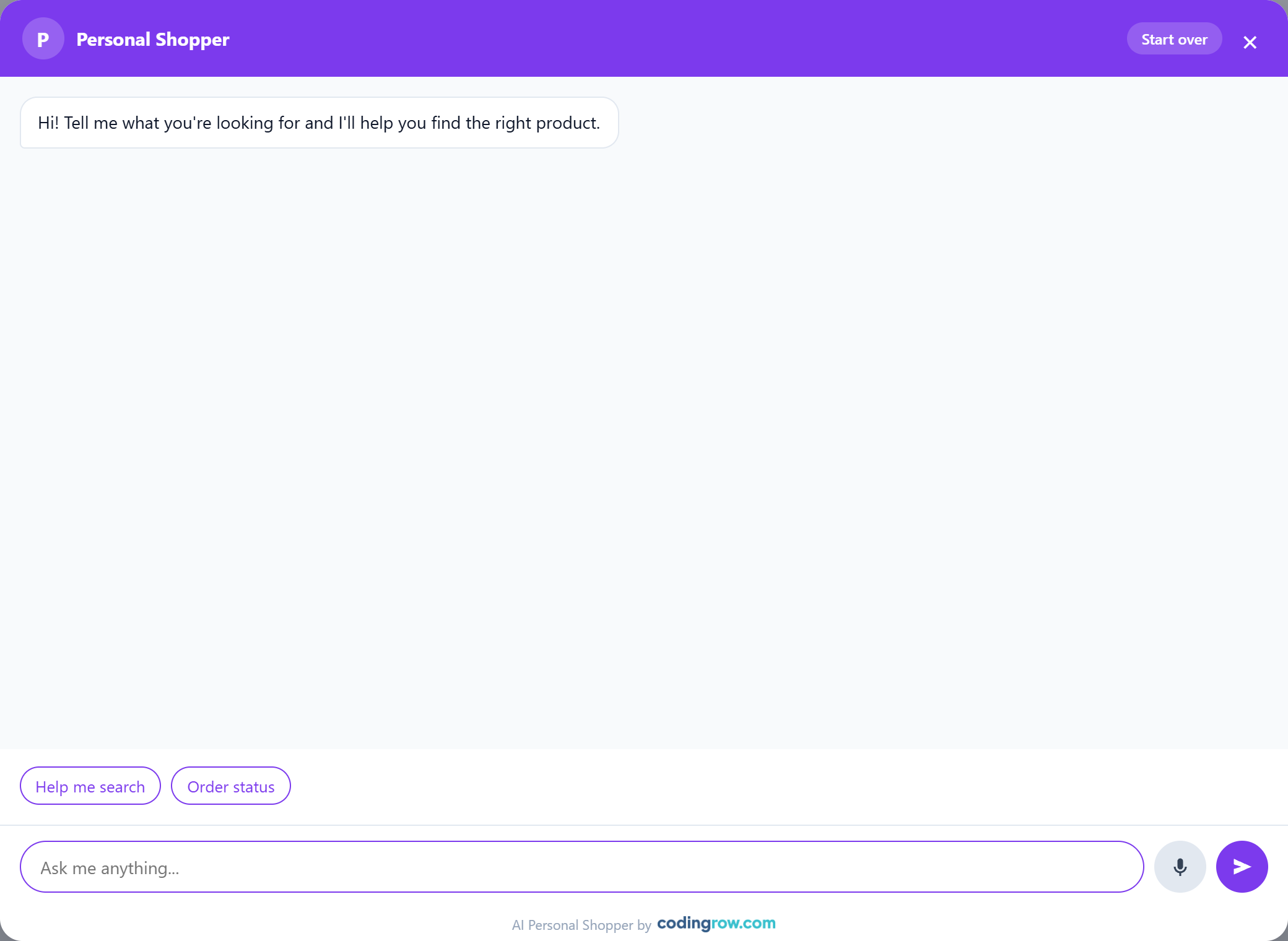
Everything the customer sees in the chat — which products, in what order, and how the cards change as the conversation moves — is driven by the assistant, not a fixed result list.
- Curated, live cards — the assistant searches broadly, then chooses which products to show and in which order, steering toward 2–3 strong options rather than dumping a wall of results. The cards refresh in real time on every turn: as the customer narrows down ("the one in mango", "something cheaper"), the grid is rebuilt to match.
- Category cards — when a request is too vague for a single product ("a gift for the house, not sure what"), the assistant proposes categories to explore instead of a dead end.
- Quick replies — clickable option buttons offered under a message, so the customer can move forward with a tap instead of typing.
- Add to cart — a quantity selector right on the card confirms before adding. Since 2.2.0 products with sizes, colours or several items are bought in the chat too: the assistant asks one choice at a time and the right variant goes to the cart. The product page is only offered for options the chat cannot handle, such as an engraving or a file upload.
- Rich cards — product cards show name, image, price and any discount, plus a "Tell me more"; order cards show the tracking (carrier + number) when it is available.
- Persistence — the conversation survives a page refresh for 7 days, and a Start over button clears it to begin fresh.
Sizes, colours and kits
Since 2.2.0 the chat cart no longer accepts simple products only. When a product has choices to make, the assistant offers them one at a time inside the conversation, and the product goes to the cart with the right variant.
- Configurable — size first, then colour, then quantity, in the order you configured the attributes in Magento. Combinations that do not exist are never offered.
- Grouped (kits) — all items in one go, each with its own quantity; anything left at zero does not end up in the cart.
- Bundle (modular sets) — one choice per option, optional add-ons included.
Choices are drawn the way you configured them in Magento: colours with their real hex code, sizes as a large readable value, long lists as a dropdown. The quantity appears on the last card of the path. On desktop everything happens in the side panel, on mobile inside the chat. On bundle and grouped cards the price is the real range, not €0.00.
Sold-out options stay visible, greyed out. That is the default: hiding a sold-out size makes the customer believe you never make it. The switch is in Stores → Configuration → Codingrow → AI Personal Shopper → Catalog Search → Show unavailable choices, greyed out; options that can still be ordered are never greyed. Not to be confused with Only in-stock products, which decides whether the product is proposed at all.
If a product has custom options the chat cannot handle (a free-text engraving, a file upload), the assistant says so and offers the link to the product page, instead of opening a page without a word of explanation.
Sessions & page awareness
The assistant keeps track of who it is talking to and where, so the conversation feels continuous and stays on the right product.
- Rite of entry — instead of an instant canned reply, the widget shows a short Connecting…, then an operator with a name "joins the chat" after 10–20s and asks for the customer's name. The timing and typing are simulated, and the pace is configurable.
- Sessions — if the customer comes back after more than ~5 minutes, a new session starts without asking for the name again, marked by a divider line in the chat; within a few minutes it simply continues.
- Product-page context — when the chat is opened from a product page, an implicit question ("tell me about it", "what is it made of?") resolves to that product, linked natively by URL/url_key and robust to redirects.
- Cart awareness — via
get_cartthe assistant can take what is already in the cart as a signal of interest — to suggest matches and avoid re-proposing what is already there — without commenting on it. - Closing cross-sell — when the capability is enabled and the customer is done, it adds one or two complementary products as a final suggestion, then says goodbye.
Proactive assistant
Since 2.2.0 the assistant can take the initiative. It is configured in Stores → Configuration → Codingrow → AI Personal Shopper → Proactive assistant and everything is off to begin with: a shop assistant who speaks first can sell more or annoy, and only you know how you talk to your customers. In no case does the chat window open by itself: the assistant lights the dot on the button and waits.
- Suggest pairings after an add to cart — Never (default), only the first time in a visit or every time. When the customer adds something to the cart while browsing the shop, the assistant prepares a couple of pairings. Each time it is one AI call, billed by your provider. There is no waiting time on this one: it fires immediately and appears when the model answers.
- Offer help after (seconds on the page) — 0 = never (default). If a customer has been on a page that long without ever opening the chat, it offers a hand. It costs nothing: the sentence is written by the widget. Never on the cart or the checkout.
- What it says — the invitation text. Leave empty for the default sentence, translated in every language the module ships with.
It works on both Hyvä and Luma: the widget listens to the events the theme already emits when the cart changes, so an AJAX add with no page reload is detected too.
Conversations born this way skip the name ritual, so they reach Conversations without a name: they are recognisable by the Origin column (Customer, Assistant — after an add to cart, Assistant — offered help). If the customer replies and gives a name, it is recorded like in any other chat.
Branding and colors
Set an Assistant name (shown as the operator, e.g. "Anna") and, optionally, a Brand logo (fixed height so it never deforms) or Brand text with your company name — shown top-left in the chat header. The operator name still appears as a sub-line with a live presence dot underneath the brand, even when a logo is set. Accent color controls the launcher button and in-chat accents; Header/theme color (optional) colors the header bar and the customer's message bubbles — leave it empty to reuse the accent color.
AI search button
When the sticky search bar of the Live Search module is active, the AI Personal Shopper can add a second AI lens button right next to the search field. Clicking it opens the assistant chat; and if the customer has already typed something in the search box, that text is sent straight in as the first message — so a search that returns too many (or zero) results turns into a guided conversation in one tap.
Enable it under Stores → Configuration → Codingrow → AI Personal Shopper → Assistant & Branding with AI button in the search bar = Yes. It is a soft integration: if Live Search is not installed or its sticky bar is off, the button simply does not appear — no hard dependency.

Self-learning synonyms
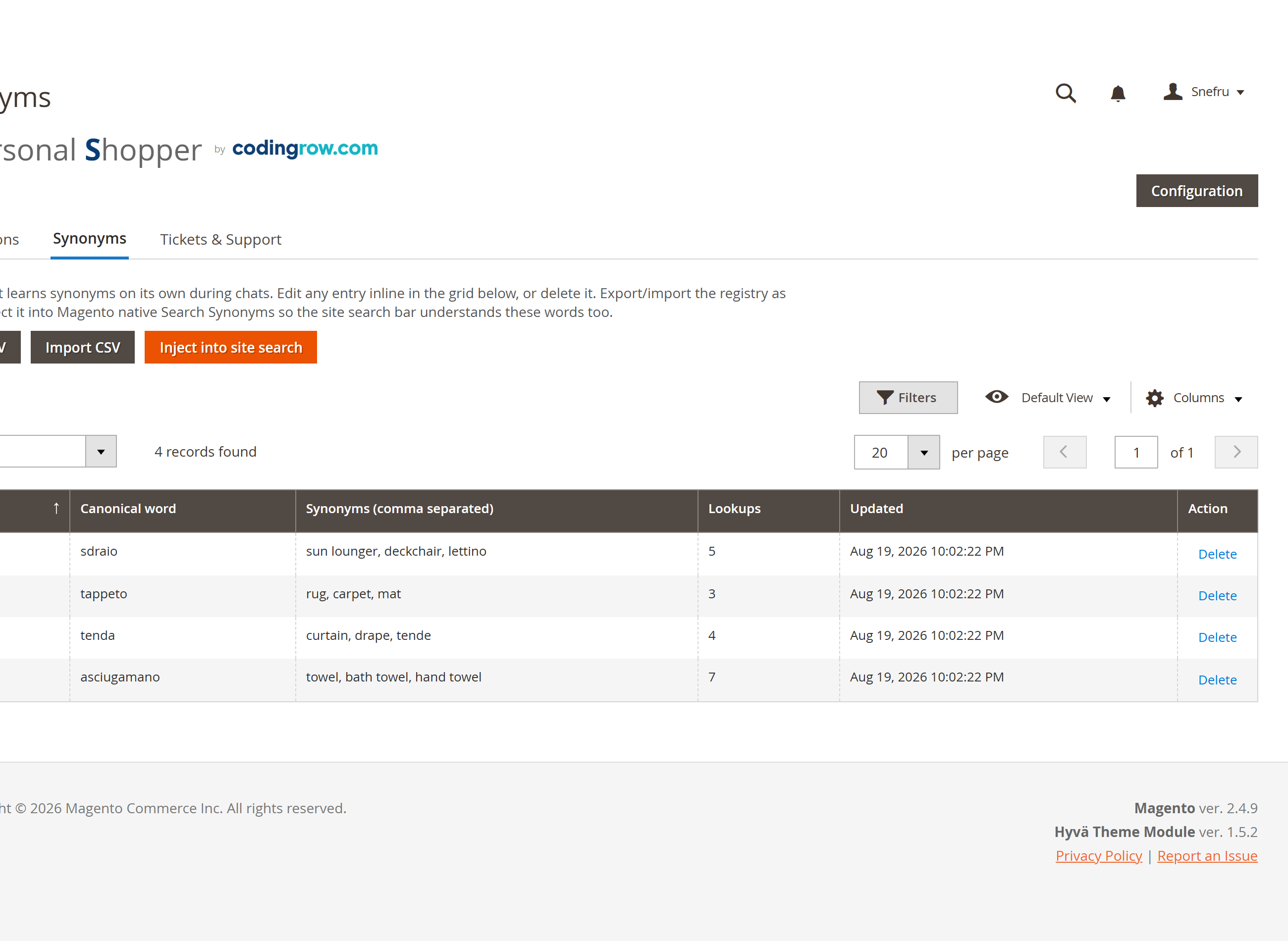
When enabled (Capabilities → Self-learning synonyms), the agent records a mapping every time a customer's search word doesn't match the catalog directly but a later attempt does — regional names, dialect, misspellings, synonyms. Review and edit the registry in Codingrow → AI Personal Shopper → Synonyms: a paginated, inline-editable table. Use Export CSV / Import CSV to back it up, bulk-edit it, or move it between environments. The Inject into site search button writes the whole registry into Magento's native Search Synonyms, so the storefront search bar benefits too — not just the chat. The agent also reads your hand-curated native Search Synonyms, so both systems reinforce each other.
Example: a customer searches "felpa" and the agent finds nothing directly, but a later attempt with "sweatshirt" matches — the pair is recorded automatically, so the next "felpa" search resolves immediately, and you can push it into native search with one click.
Human support tickets
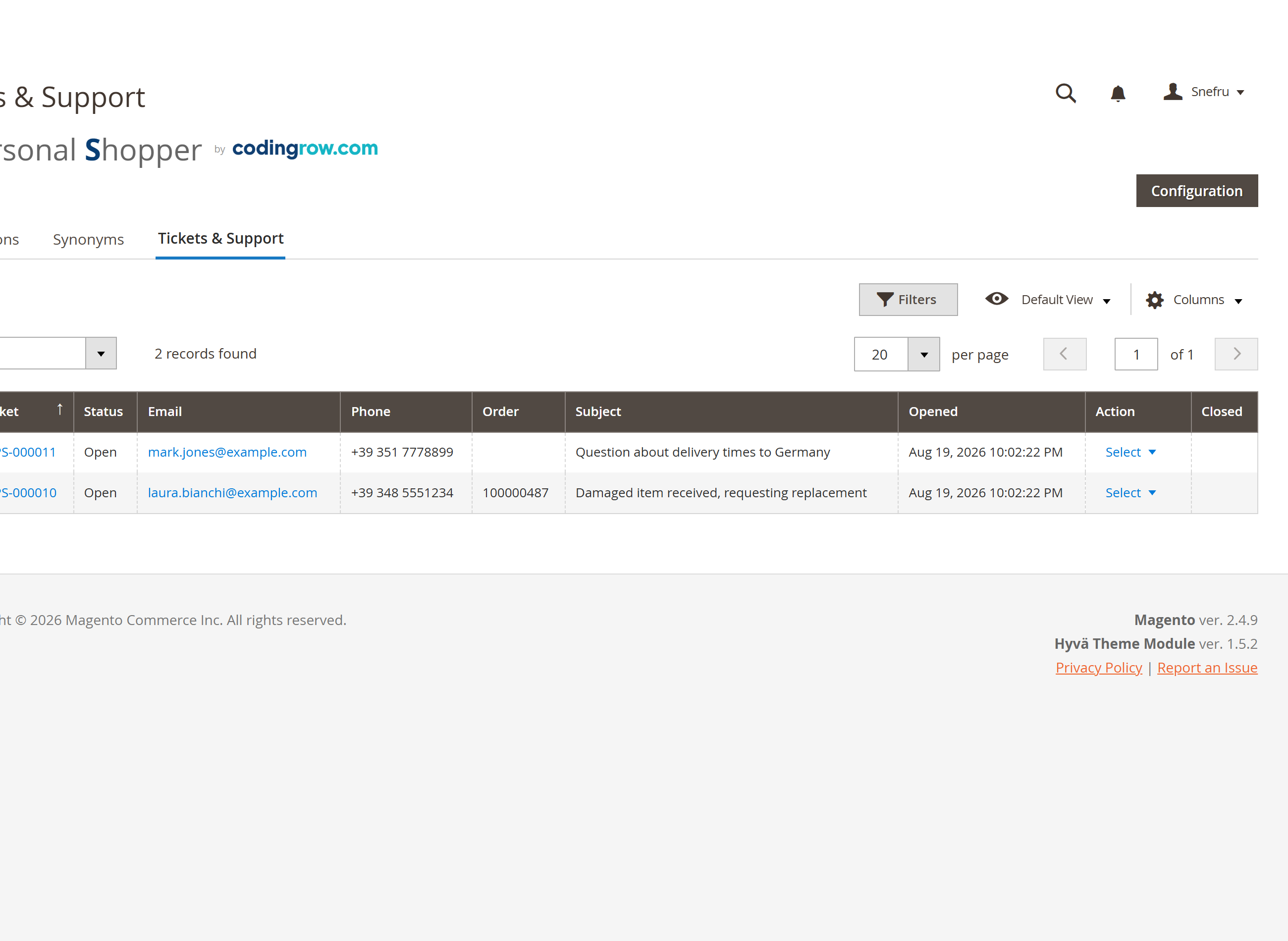
When enabled (Capabilities → Human support tickets), the agent proposes opening a ticket if a customer needs a human and isn't resolved by the conversation alone. It asks for email (required) and, when useful, order number and a phone/WhatsApp contact, then assigns a ticket number — prefixed with Ticket number prefix (default AIPS-), e.g. AIPS-000042 — and emails the full transcript to the customer, BCC'd to the address set in Human support → Support email (BCC) (if left empty, the email goes only to the customer). The response time text shown to the customer comes from Human support → Response time.
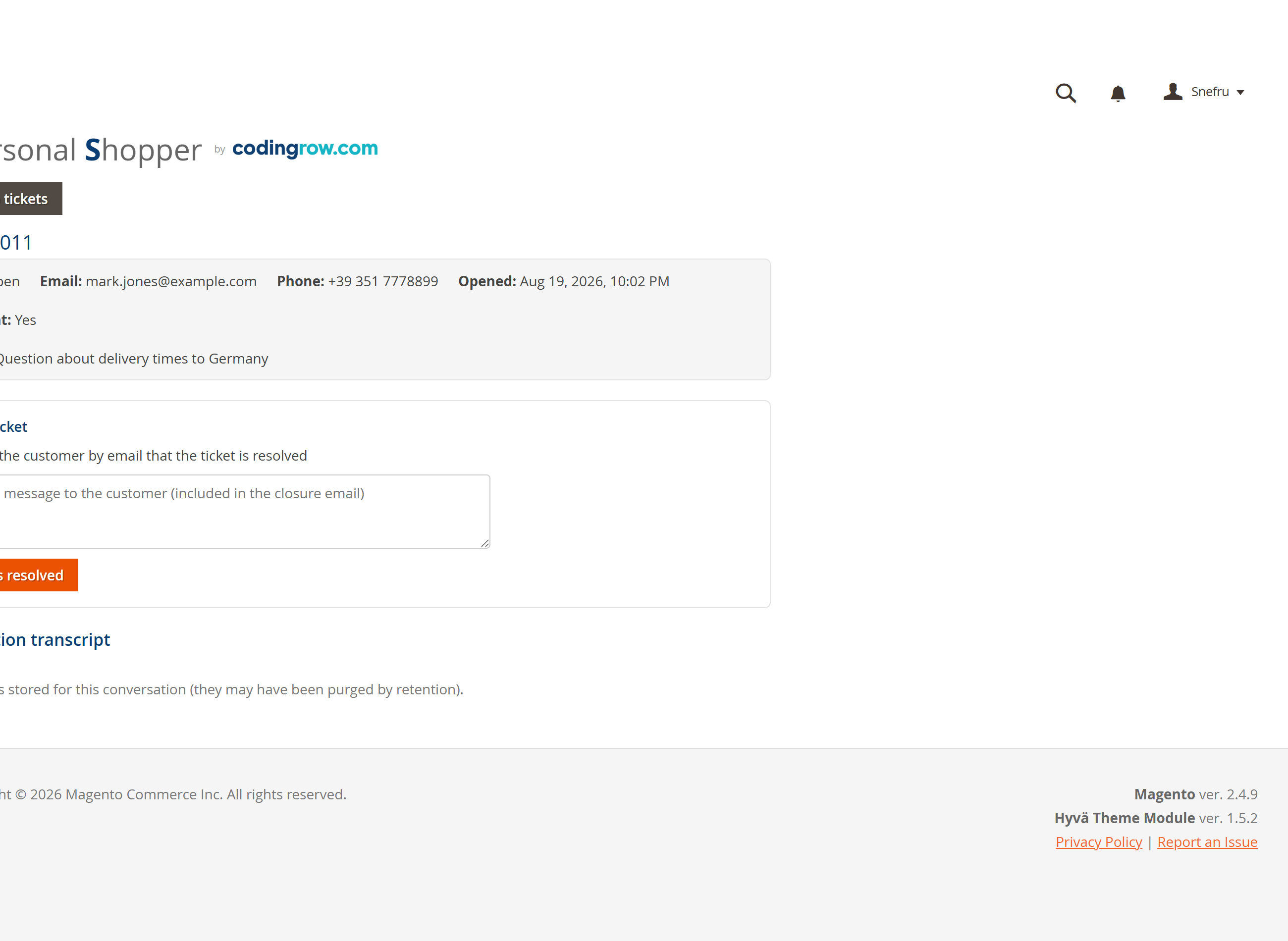
Tickets appear under the Tickets & Support tab: a grid with View opening the contact details and full transcript, and a Closed by column recording who closed each one — admin, cron or customer. The Resolve action closes a ticket and can override the default close notification for that ticket, sending the customer a custom message. A daily task auto-closes any ticket left open beyond Auto-close open tickets after (days) (recorded as closed_by = cron). The customer can also close or cancel their own ticket from the chat, but only after an ownership check — the ticket number and email must both match. The agent additionally classifies conversations that report a site problem as Bug report, so issues reach your team without a support ticket.
Example: a customer writes "I need to talk to someone about my order". The agent asks for their email (and, when useful, the order number and a phone/WhatsApp contact), assigns a ticket number such as AIPS-000042, and emails the full transcript to the customer with BCC to your support address. Your team resolves it from the Tickets & Support tab — optionally notifying the customer with a custom message — or it auto-closes (closed_by = cron) once it has been inactive for the configured number of days.
| Setting | What it does | Default |
|---|---|---|
| Support email (BCC) | Address that receives a BCC copy of every ticket transcript email. | — (customer-only if empty) |
| Response time | Text shown to the customer when a ticket is opened. | 24-48 hours |
| Ticket number prefix | Prefix used when assigning ticket numbers. | AIPS- |
| Auto-close open tickets after (days) | Tickets with no activity are closed automatically by a daily task (recorded as closed_by = cron). | — |
| Notify on close | Who is notified when a ticket is closed; the Resolve action can override this per ticket and send the customer a custom message. | Admin |
| Closed by | Grid column recording who closed each ticket: admin, cron or customer. | — |
Security & anti-abuse
Because every AI reply costs a real API call, the widget is protected by a layered defense that stops probes, scanners, injection and prompt-injection attempts and low-value messages before they ever reach the model — at zero cost.
- Per-IP caps — a burst limit of 15 requests / 60s, 300 requests per day, at most 30 new chats per day, and 60 turns per conversation.
- Global circuit breaker — a store-wide ceiling of about 5,000 AI calls per day protects the budget against a distributed attack.
- Proof-of-widget token — the widget proves it went through the real entry ritual; the Require widget token toggle (Security & anti-abuse) enforces it and rejects forged calls to the endpoint.
- Full logging — every blocked event is logged with IP, user-agent and reason, so abuse stays visible.
- Provider watchdog — if the AI provider starts failing (out of credit, wrong key), a watchdog emails you so a silent outage does not go unnoticed.
Reading conversations
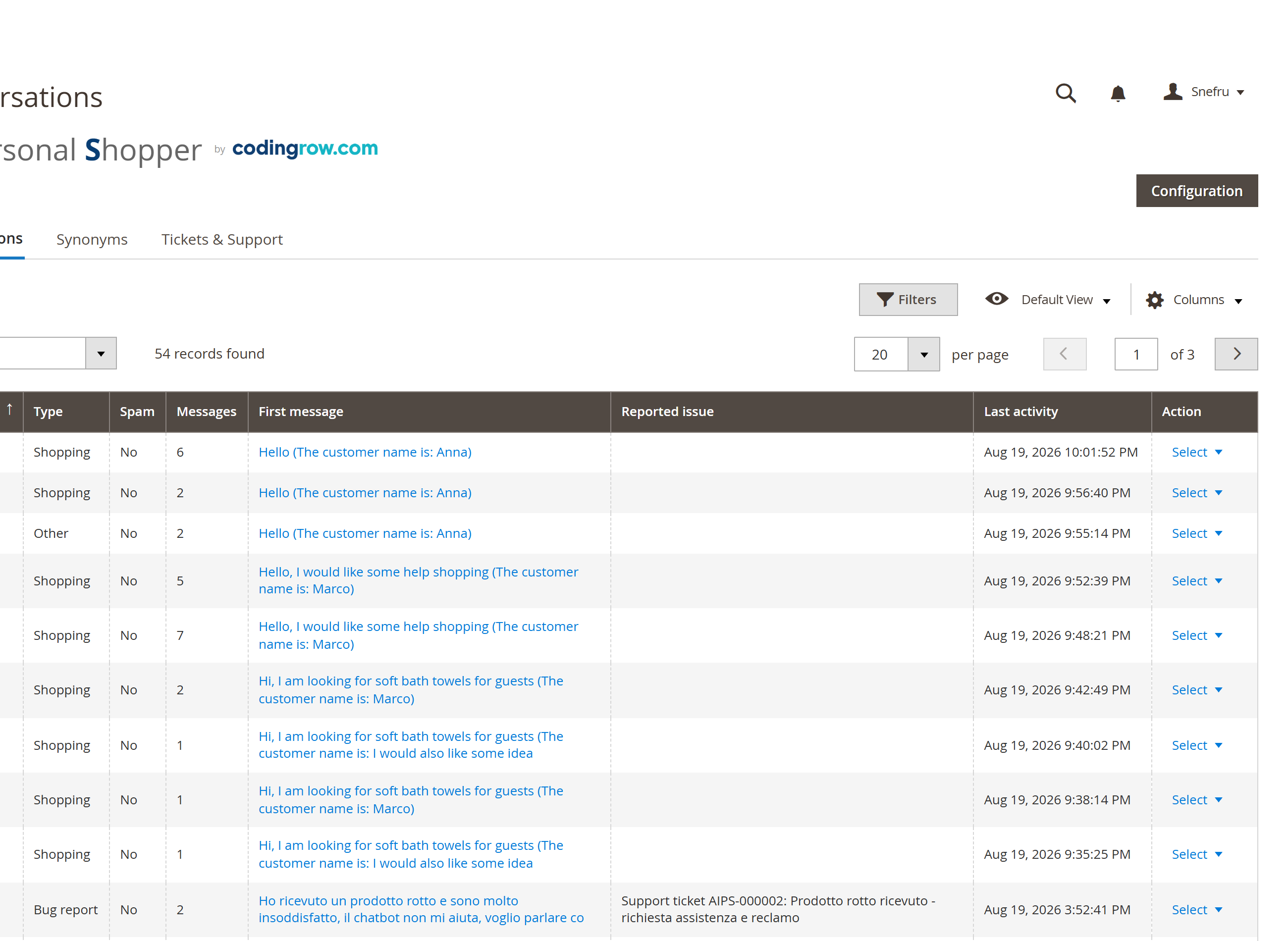
Codingrow → AI Personal Shopper → Conversations lists every conversation, automatically classified as Shopping, Support, Bug report, Possible spam or Other, paginated and filterable by type. The View action opens the full thread — every customer and assistant message, including the product cards proposed at each turn — read-only. Conversations can be deleted individually or in bulk; older conversations beyond the configured retention are purged by a daily task (bug reports are excluded from automatic purging).
Example: a conversation where the customer describes a checkout error is automatically filed under Bug report, so your team sees it in the console without anyone having to send an email.
License
The license is issued for one domain and can be a single-module key (AI Personal Shopper) or a Codingrow subscription key (all modules). Without a valid license the chat widget does not render. Your license covers the current version plus 1 year of updates & support; you keep using the covered versions forever, and can renew support (−35%) to upgrade to newer releases.