A generic "Whoops, our bad..." screen is a lost opportunity: every broken link or mistyped URL sends visitors to a dead end instead of back into your catalog. Building a Magento 2 custom 404 page natively lets you keep shoppers on-site, reinforce your branding, and even recover a few sales that would otherwise bounce away.
- Configure a dedicated CMS page to replace Magento's default no-route page
- Point Magento to that page from the admin, per store view if needed
- Add branding, a search box and helpful links using native widgets
- Test, cache-flush and verify the page returns a real 404 status
Step 1: Create the CMS page that will act as your 404
Use the WYSIWYG editor to write a short, friendly message and drop in useful shortcuts:
- A link back to the homepage
- A link to your main catalog or bestsellers
- The native
CMS Static BlockorCatalog Products Listwidget to show a couple of featured items
Set @field Enable Page :: Yes and save.
Step 2: Tell Magento to use this page for broken URLs
Save the configuration, then flush the cache.
Step 3: Style the page with your theme
Out of the box the CMS page inherits your theme's header, footer and typography, which already looks better than the raw system message. For deeper control:
- Wrap your content in a custom CSS class and style it in your theme's
styles-m.less/styles-l.lessfiles - Add a large, bold
404heading directly in the CMS content for visual impact - Keep the message short: one line explaining the page wasn't found, one line inviting action
Step 4: Override the layout for full template control (optional)
If you need more than a CMS page allows — custom blocks, dynamic product recommendations, a different header — override the layout at theme level.
Use this file to add or remove blocks around the no-route content, following standard Magento layout XML conventions. This is developer territory: back up your theme and test on staging first.
bin/magento setup:static-content:deploy) before they appear on the storefront. Step 5: Verify the page actually returns HTTP 404
Browse to a nonexistent URL on your store, e.g. yourstore.com/this-page-does-not-exist, and check the response headers with your browser's developer tools or a command-line tool.
- The status code must remain
404 Not Found, even though the content looks custom - If you see
200 OKinstead, search engines will index the error page as real content — a serious SEO issue
Checklist
- ☐ Dedicated CMS page created and enabled
- ☐
CMS No Route Pageset in Stores›Configuration›Web›Default Pages - ☐ Correct store view scope applied for multi-store setups
- ☐ Cache flushed after every configuration change
- ☐ Page verified to return a real
404HTTP status - ☐ Message, search box and homepage link tested on mobile
Common mistakes
Forgetting to flush cache. Configuration and CMS changes can stay invisible behind full page cache. Always flush System›Cache Management after edits.
Leaving the CMS page disabled. A perfectly built page won't show if Enable Page is still set to No — an easy detail to miss after cloning a draft.
Redirecting instead of serving a 404. Sending every broken URL to the homepage with a 301 hides real errors from your SEO reports and from Google Search Console.
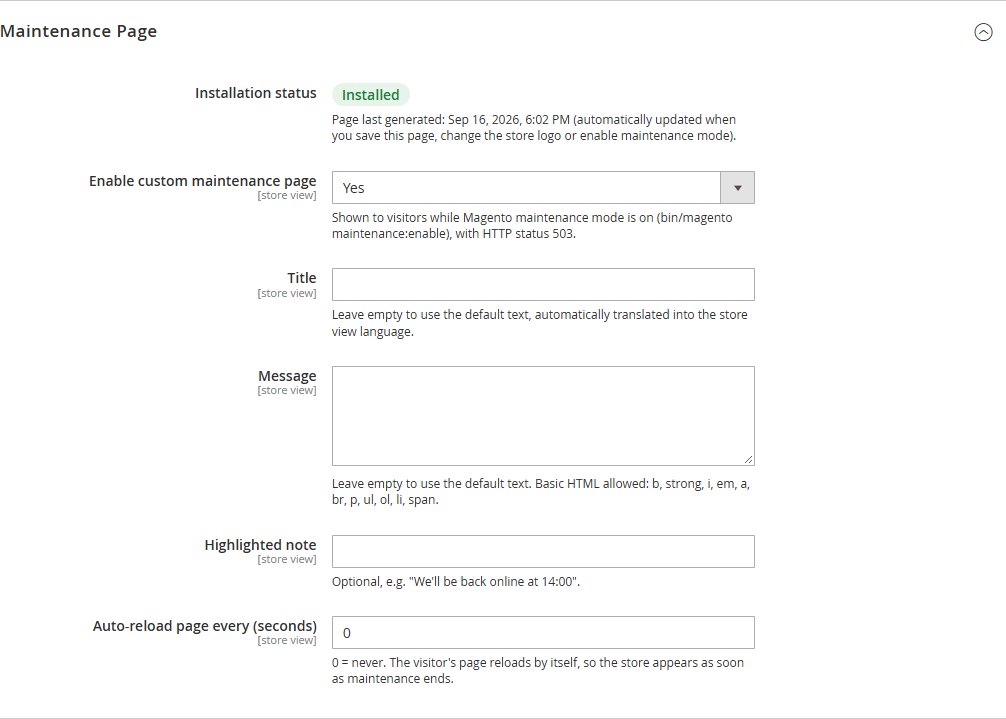
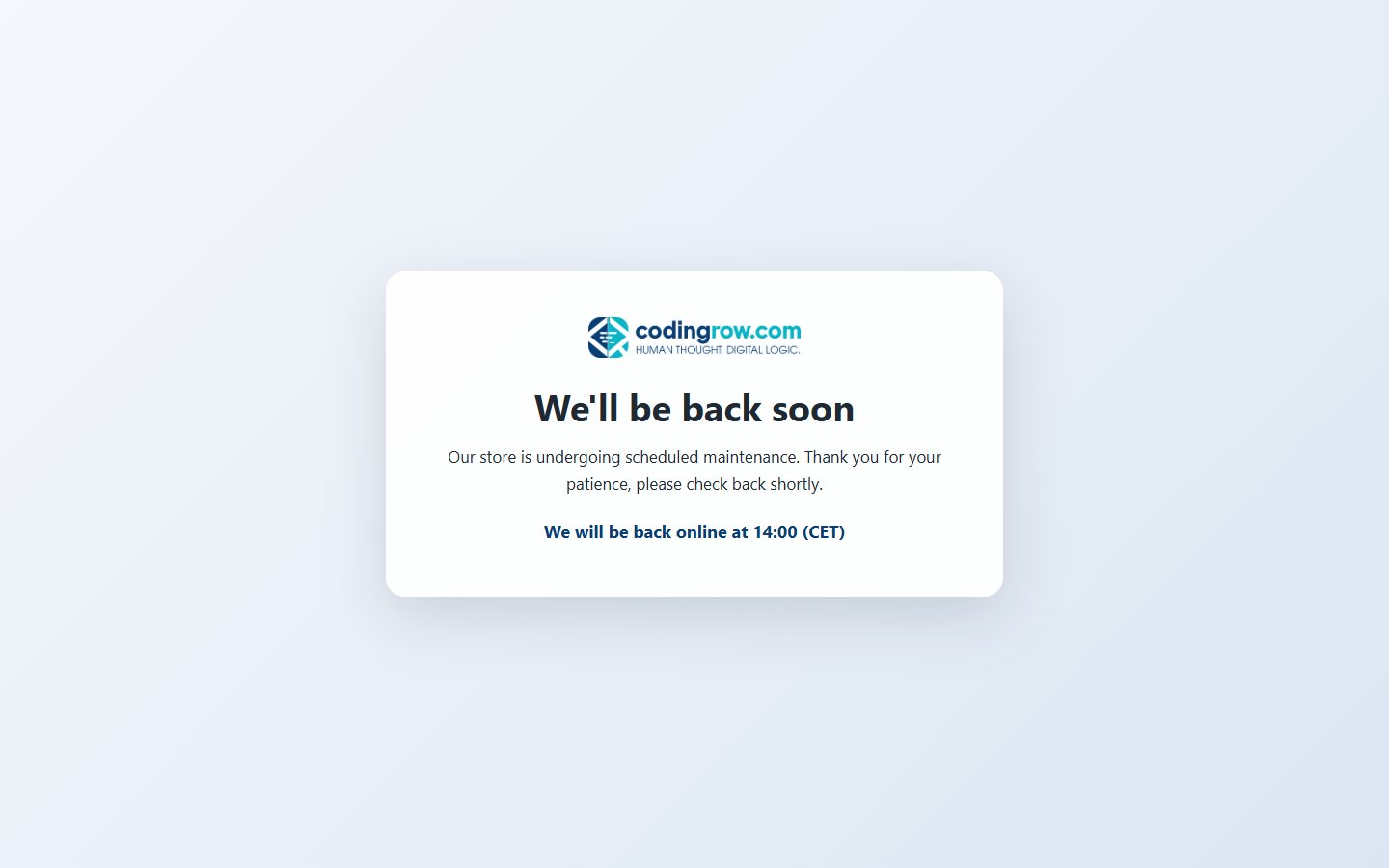
Ignoring the maintenance page. A custom 404 solves one half of the error-page experience; the default Magento maintenance screen during deployments still looks generic unless you address it separately.
FAQ
Does a custom CMS 404 page hurt SEO?
No, as long as the server still responds with a 404 status code. Magento's native no-route mechanism preserves that status even when the content comes from a CMS page.
Can I show different 404 pages per store view?
Yes. The CMS No Route Page setting under Stores›Configuration›Web›Default Pages can be scoped to a specific website, store, or store view.
Why isn't my new 404 page showing up?
Usually a caching issue. Flush the Magento cache, check the CMS page is enabled, and confirm you saved the configuration at the correct scope.
Should the 404 page and the maintenance page look the same?
They serve different moments (an error vs. planned downtime), but keeping consistent branding — logo, colors, tone — across both reassures visitors that the site is trustworthy rather than broken.
A faster alternative
Building this natively works well, but keeping the 404 page, the maintenance page, backgrounds, fonts and accent colors in sync across a theme redesign means repeating the same manual steps every time.
The Custom 404 & Maintenance module adds a single admin configuration screen where you set the title, message, search box, button label, logo, background (color, gradient or image with darkening) and accent colors for both the 404 page and the maintenance page together — with a live preview before you save.
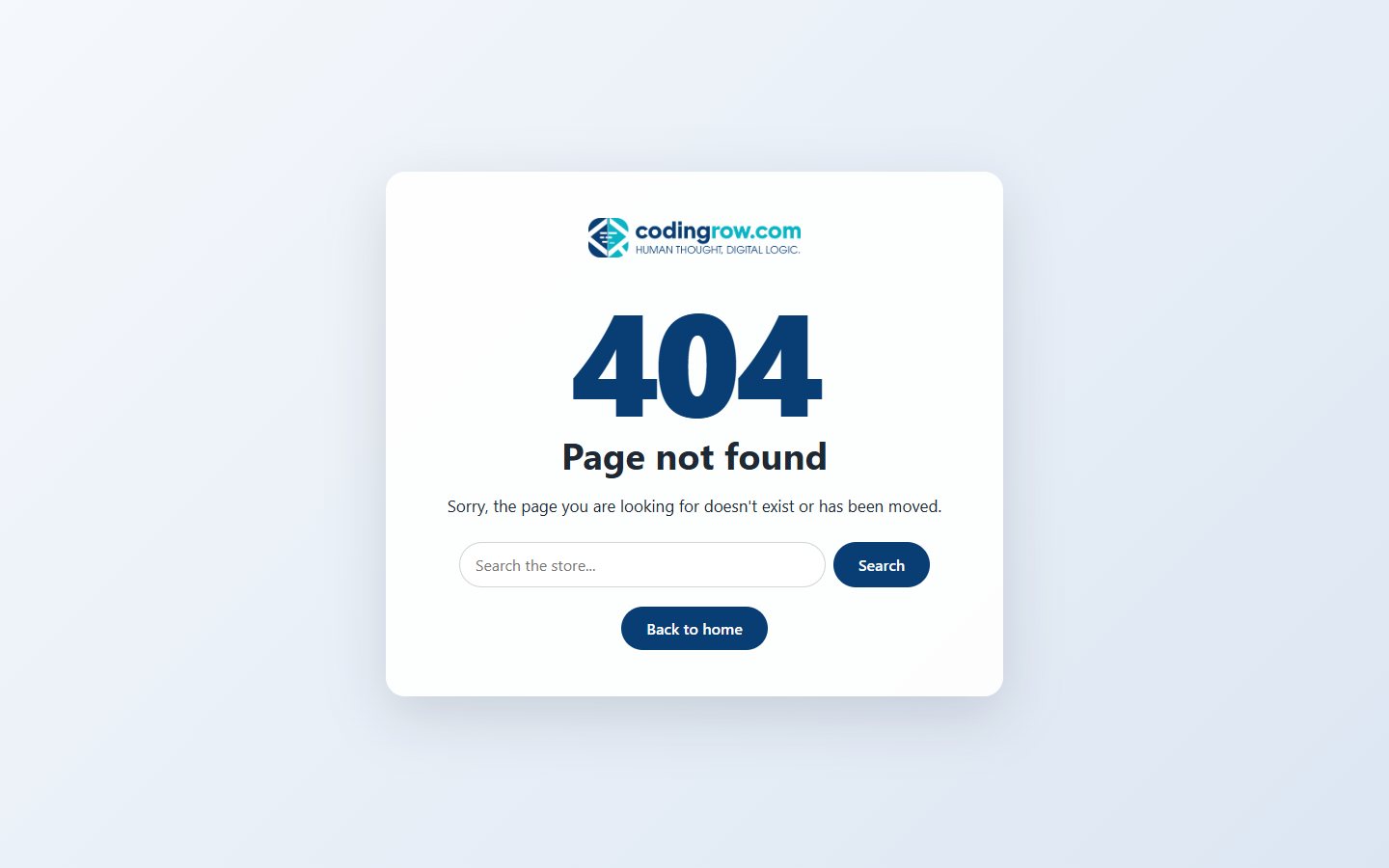
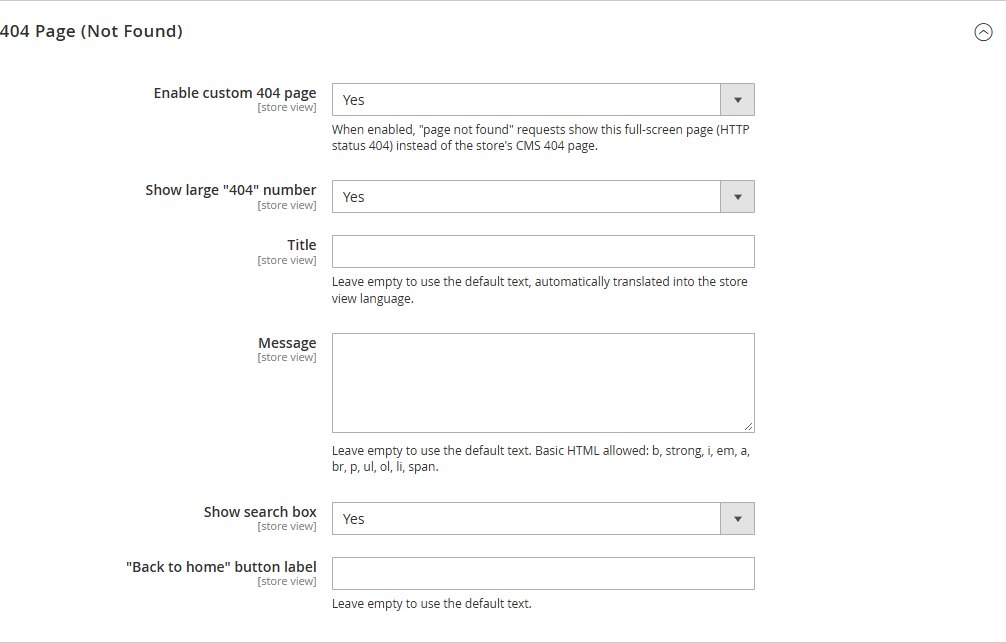
It also ships a CLI command to regenerate the pages across store views, so the same branded experience appears instantly whether a visitor hits a broken link or your store is in scheduled maintenance.