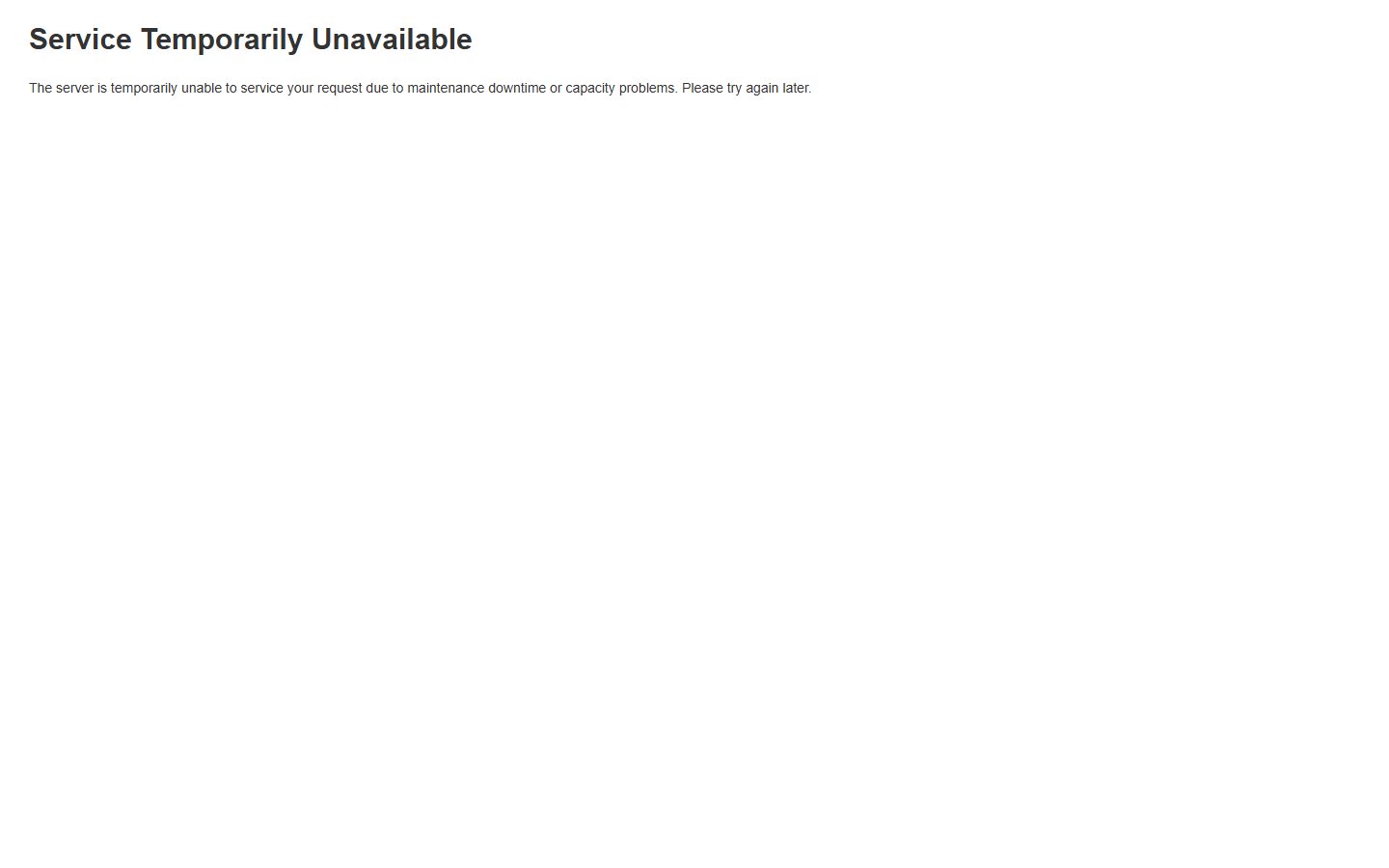
Every Magento store owner eventually needs to take the site offline for an upgrade, a migration or a server change — and by default, visitors land on a bare "Service Temporarily Unavailable" screen. This guide shows how to control and customize the Magento 2 maintenance mode page using native tools, so your downtime looks intentional instead of broken.
- Enable and disable Magento maintenance mode safely via CLI
- Whitelist your own IP so you can keep testing while customers see the maintenance page
- Locate and edit the native maintenance page template to add your own message and branding
- Know the limitations of the native approach and a faster alternative for non-developers
Step 1: Understand how Magento maintenance mode works
Magento's maintenance mode is triggered by a flag file at the root of your installation, not by an admin toggle.
- When active, Magento creates a
var/.maintenance.flagfile. - Every request is intercepted and returns an HTTP
503status. - Search engines understand
503as "temporarily unavailable" and won't drop your rankings if the outage is short.
Step 2: Enable maintenance mode via CLI
Connect to your server via SSH and run:
bin/magento maintenance:enableTo check the current status at any time:
bin/magento maintenance:statusStep 3: Whitelist your IP address
You don't want to be locked out while testing your own update. Magento lets you allow specific IPs to browse normally during maintenance.
bin/magento maintenance:allow-ips 203.0.113.10You can pass multiple IPs separated by commas. To enable maintenance mode and whitelist in one command:
bin/magento maintenance:enable --ip=203.0.113.10,203.0.113.11Step 4: Locate the native maintenance page template
Magento ships a default error page structure under:
pub/errors/default/Key files inside this folder:
503.phtml— the HTML markup rendered during maintenance mode.local.xml— defines texts such as the page title and message.default/cssanddefault/images— static assets used by the fallback page.
Step 5: Create a custom error page folder
To avoid overwriting core files (which get reset on upgrade), copy the default folder into a new one:
cp -r pub/errors/default pub/errors/localThen point Magento to use it by editing:
pub/errors/local.xmlStep 6: Edit the maintenance message and branding
Open pub/errors/local/503.phtml in a code editor and update:
- The page title and heading text.
- The body message (e.g., "We're upgrading our store and will be back online shortly").
- Add your logo by referencing an image placed in
pub/errors/local/images/. - Adjust inline CSS or link to a custom stylesheet in
pub/errors/local/css/.
Step 7: Test before going live
Before relying on your custom page in production:
- Open the storefront in an incognito window (not whitelisted) while maintenance mode is active.
- Check the page on both desktop and mobile breakpoints.
- Confirm the HTTP status code is still
503using browser dev tools or a header-checking tool.
Step 8: Disable maintenance mode when finished
Once your update is complete:
bin/magento maintenance:disableChecklist
- ☐ Identify a low-traffic maintenance window
- ☐ Note your IP address and whitelist it before enabling maintenance mode
- ☐ Copy
pub/errors/defaultto a custom folder to avoid losing changes on upgrade - ☐ Update the message, title and logo in the custom
503.phtml - ☐ Test the page from a non-whitelisted device\- [ ] Confirm the response is
503, not200 - ☐ Disable maintenance mode and verify the store is back online
Document your maintenance procedure (commands, IPs, file paths) in a short internal runbook so any team member can repeat it safely.
Common mistakes
Problem: Editing files directly inside pub/errors/default instead of a custom folder.
Fix: Always duplicate the folder and point local.xml to it, so a future Magento update doesn't silently revert your branding.
Problem: Forgetting to whitelist your own IP, leading to confusion during testing.
Fix: Always run maintenance:allow-ips or pass --ip the moment you enable maintenance mode.
Problem: The maintenance page shows a generic style that doesn't match the brand, hurting trust during longer outages.
Fix: Add a logo, clear message and expected return time directly in the 503.phtml template.
Problem: Leaving maintenance mode enabled after deployment finishes.
Fix: Add bin/magento maintenance:disable as the final step of your deployment script, not a manual afterthought.
FAQ
Does maintenance mode affect my SEO rankings?
No, as long as the page correctly returns an HTTP 503 status code, search engines treat it as a temporary outage and won't deindex your pages for short maintenance windows.
Can I schedule maintenance mode automatically?
Native Magento does not include a scheduler; you need to trigger maintenance:enable and maintenance:disable manually or through your deployment pipeline (CI/CD, cron job, or server script).
Why can't I edit the maintenance page from the admin panel?
Maintenance mode templates live outside Magento's theme and configuration system, in the pub/errors folder, so there's no native admin UI for this — it requires direct file editing.
Will customers see different maintenance pages per store view?
By default, no — the same pub/errors template applies site-wide unless you build custom logic to detect store view and load different content.
A faster alternative
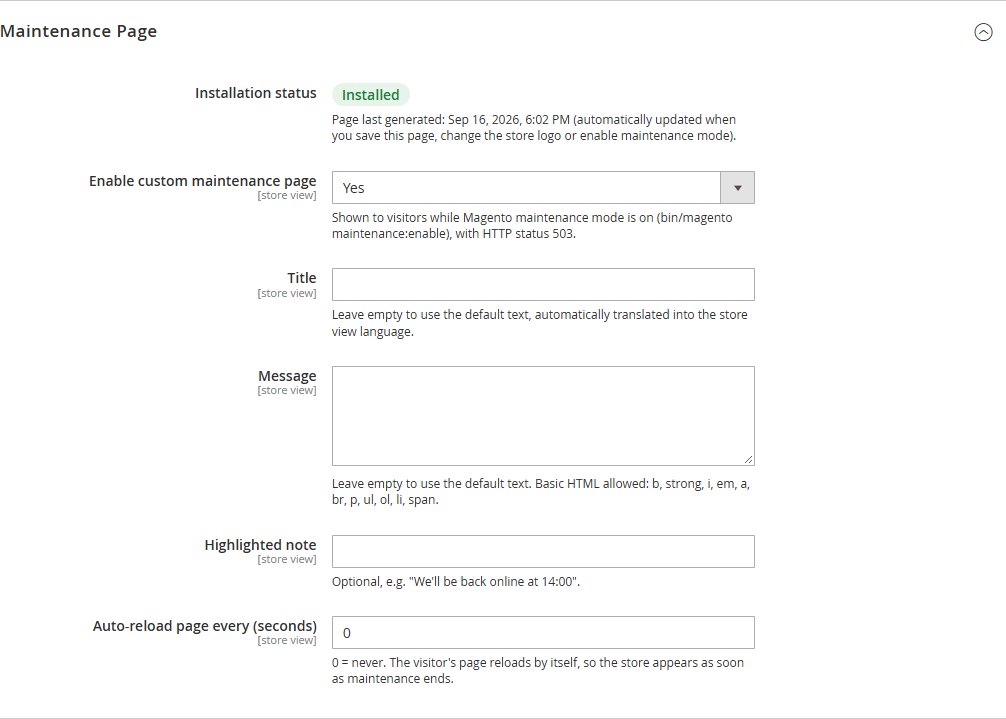
Editing pub/errors files, remembering to duplicate folders, and testing IP whitelisting works, but it takes developer time for something that happens several times a year. If you'd rather manage the branded page from the admin panel, upload a background image, adjust colors and preview changes live, the Custom 404 & Maintenance module adds this directly into Magento's configuration screen.
It generates a branded maintenance page with your title, message and a highlighted note (like an estimated return time), toggled the same way as native maintenance mode but with full visual control and no file editing required.
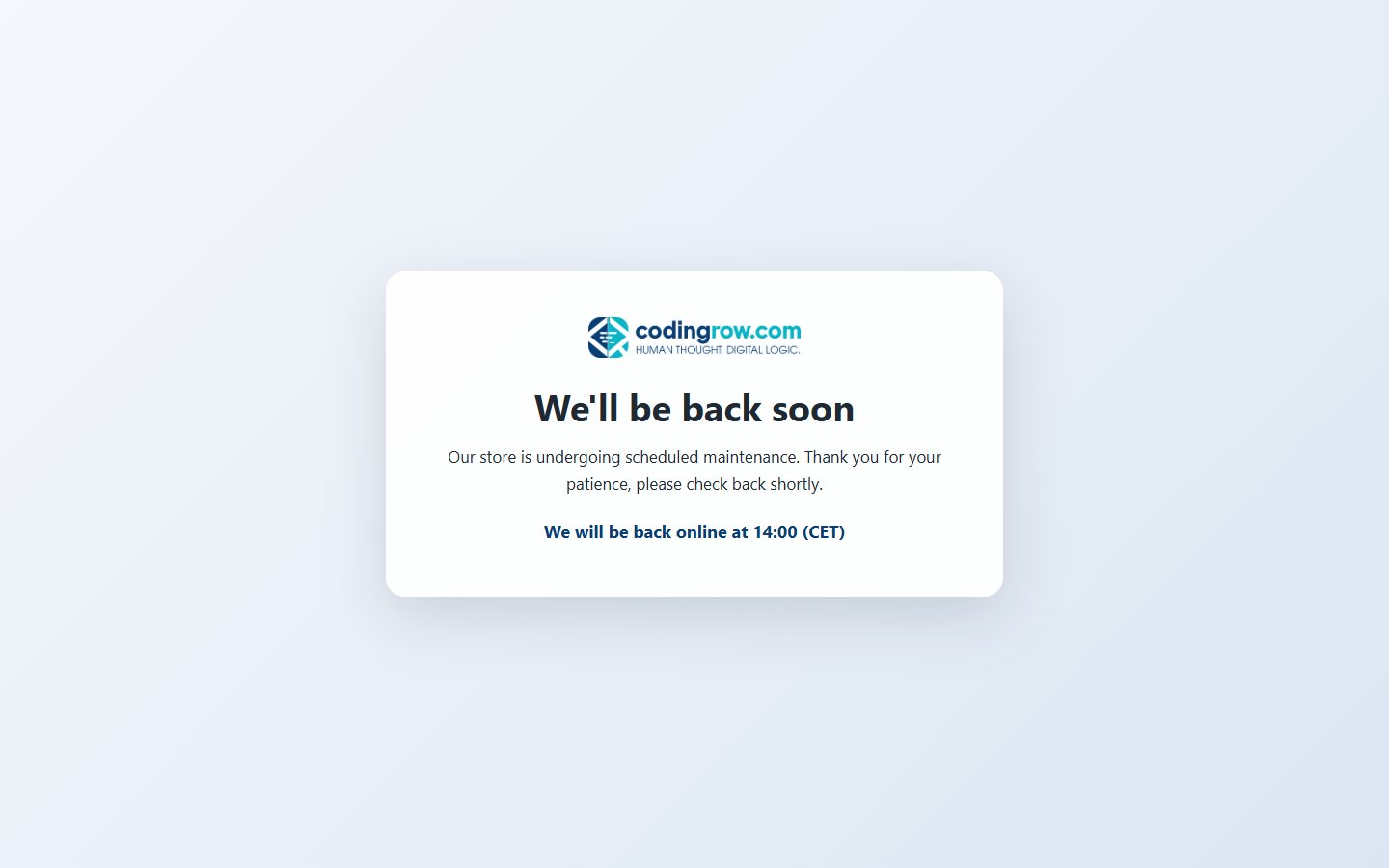
bin/magento maintenance:enable mechanics described above, it simply makes the resulting page easier to brand and preview.