Installation
Prérequis
Magento 2.4.x — testé sur 2.4.9, compatible avec les versions 2.4.* précédentes. PHP 8.1–8.5. Nécessite codingrow/module-core (installé automatiquement comme dépendance Composer) pour le menu admin Codingrow partagé et la validation de licence.
Étapes d'installation
- Ajoutez les identifiants reçus par email à
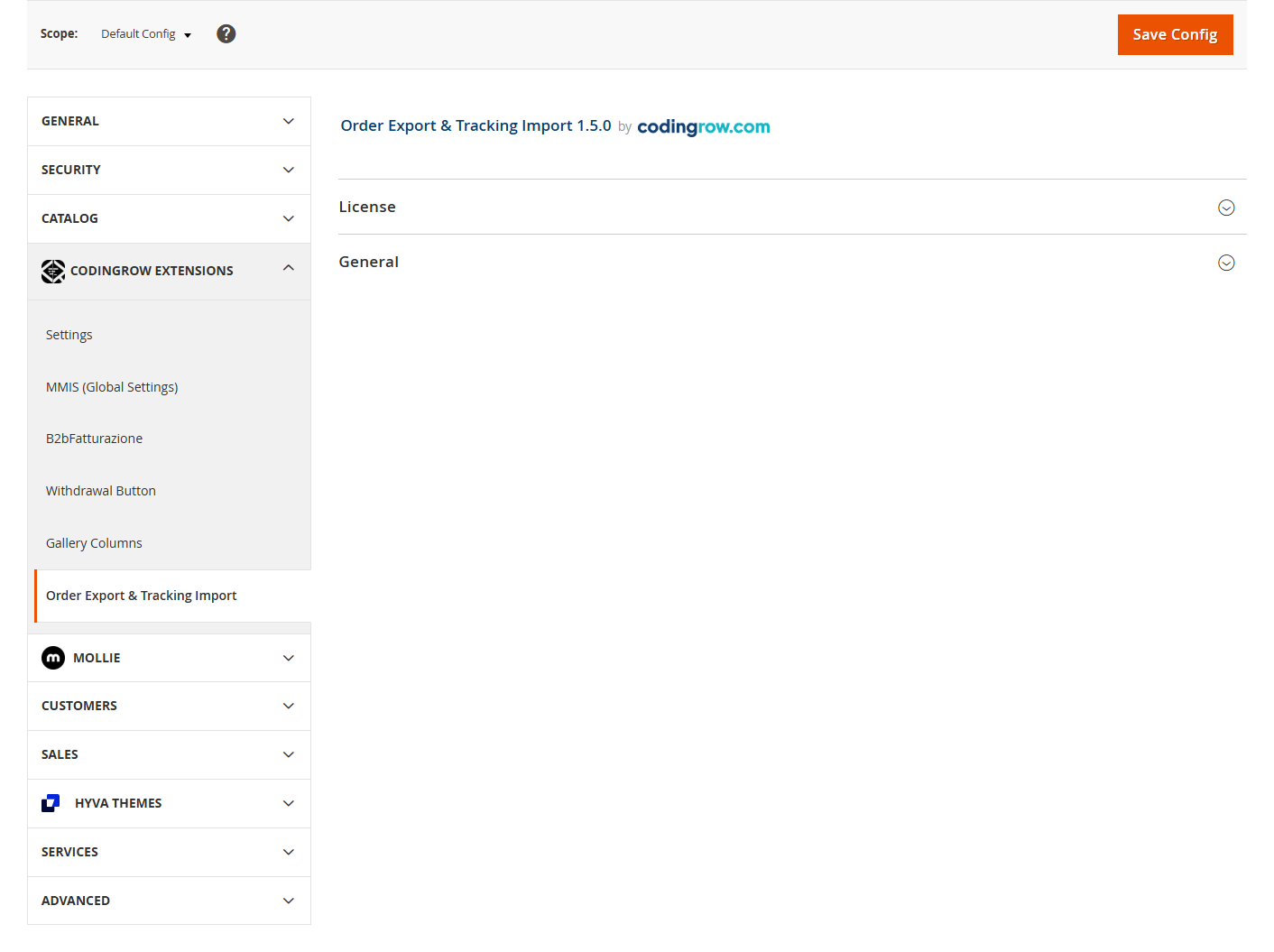
auth.jsonà la racine de votre projet Magento :{ "http-basic": { "repo.codingrow.com": { "username": "...", "password": "..." } } } composer config repositories.codingrow composer https://repo.codingrow.comcomposer require codingrow/module-oetibin/magento module:enable Codingrow_Oetibin/magento setup:upgrade && bin/magento setup:di:compile && bin/magento cache:flush- Collez votre clé de licence dans Admin → Stores → Configuration → Codingrow → Order Export & Tracking Import → License → Clé de licence, enregistrez, puis
bin/magento cache:flush. - Dans le groupe General de la même section, réglez Activer le module sur "Yes" — le module est livré activé au niveau Magento mais fonctionnellement désactivé, il n'exporte donc jamais rien tant que vous ne l'activez pas explicitement.
- Créez votre premier profil sous Codingrow → Order Export & Tracking Import → Export Profiles — voir Profils ci-dessous.
L'ensemble de l'administration des profils, du constructeur de mapping, du journal et de chaque email de notification est disponible en 7 langues, sélectionnées automatiquement selon la langue de l'utilisateur admin :
Configuration admin
La configuration se trouve dans Stores → Configuration → Codingrow Extensions → Order Export & Tracking Import (Licence plus les réglages export/tracking). Les profils d’export et leur mappage / conditions de déclenchement se gèrent depuis la grille Order Export dédiée.
Désinstallation
composer remove codingrow/module-oeti puis
bin/magento setup:upgrade && bin/magento setup:di:compile && bin/magento cache:flush.
Les profils et le journal d'export/de suivi (codingrow_oeti_profile,
codingrow_oeti_log, codingrow_oeti_tracking_log) ne sont jamais supprimés automatiquement —
utilisez d'abord Exporter le profil si vous souhaitez conserver
une copie de la configuration de votre profil.
Guide d'utilisation
Profils
Tout dans le module est organisé autour des profils, listés sous Codingrow → Order Export & Tracking Import → Export Profiles. Chaque profil est totalement indépendant : son propre nom, son propre interrupteur activé/désactivé, son ou ses propres statuts déclencheurs, sa propre destination (canal + format), son propre mapping de champs et sa propre ligne dans le journal d'export — vous pouvez faire tourner autant de profils que vous le souhaitez côte à côte (un par fournisseur, un par transporteur, un pour un ERP interne), et désactiver ou supprimer l'un n'affecte jamais les autres.
Un profil désactivé (Profil activé = "No") n'exporte jamais rien, que ce soit déclenché automatiquement, depuis l'action manuelle, ou depuis la commande CLI — ceci est indépendant de l'interrupteur global Activer le module dans System Config, qui agit comme un interrupteur maître unique désactivant tous les profils à la fois.
Canaux & formats
Chaque profil choisit un canal (où le payload est livré) et un format (comment il est sérialisé) — les deux choix sont indépendants, donc n'importe quel format fonctionne avec n'importe quel canal.
| Canal | Usage typique | Réglages clés |
|---|---|---|
| REST API | Envoie le payload sous forme de requête HTTP à un webservice | URL de destination, méthode HTTP (GET/POST/PUT/PATCH), authentification (Aucune, HTTP Basic, jeton Bearer), secondes minimum entre les requêtes (limitation de débit, 1 seconde par défaut) |
| FTP / SFTP | Téléverse le payload sous forme de fichier vers un serveur distant | Hôte, port (21 par défaut), nom d'utilisateur, mot de passe, chemin distant, FTPS optionnel (TLS explicite), mode passif |
| Fichier local | Écrit le payload dans un fichier sous le
pub/media/ propre à ce store, pour qu'un système externe vienne le récupérer en HTTP |
Sous-dossier — le fichier atterrit sous
pub/media/codingrow_oeti/<sous-dossier>/ (sous-dossier par défaut :
"default") |
Formats : JSON, XML ou CSV, choisis indépendamment du canal ci-dessus — le même mapping de champs (voir plus bas) pilote les trois, seul le format change la façon dont il est sérialisé.
Mapping des champs
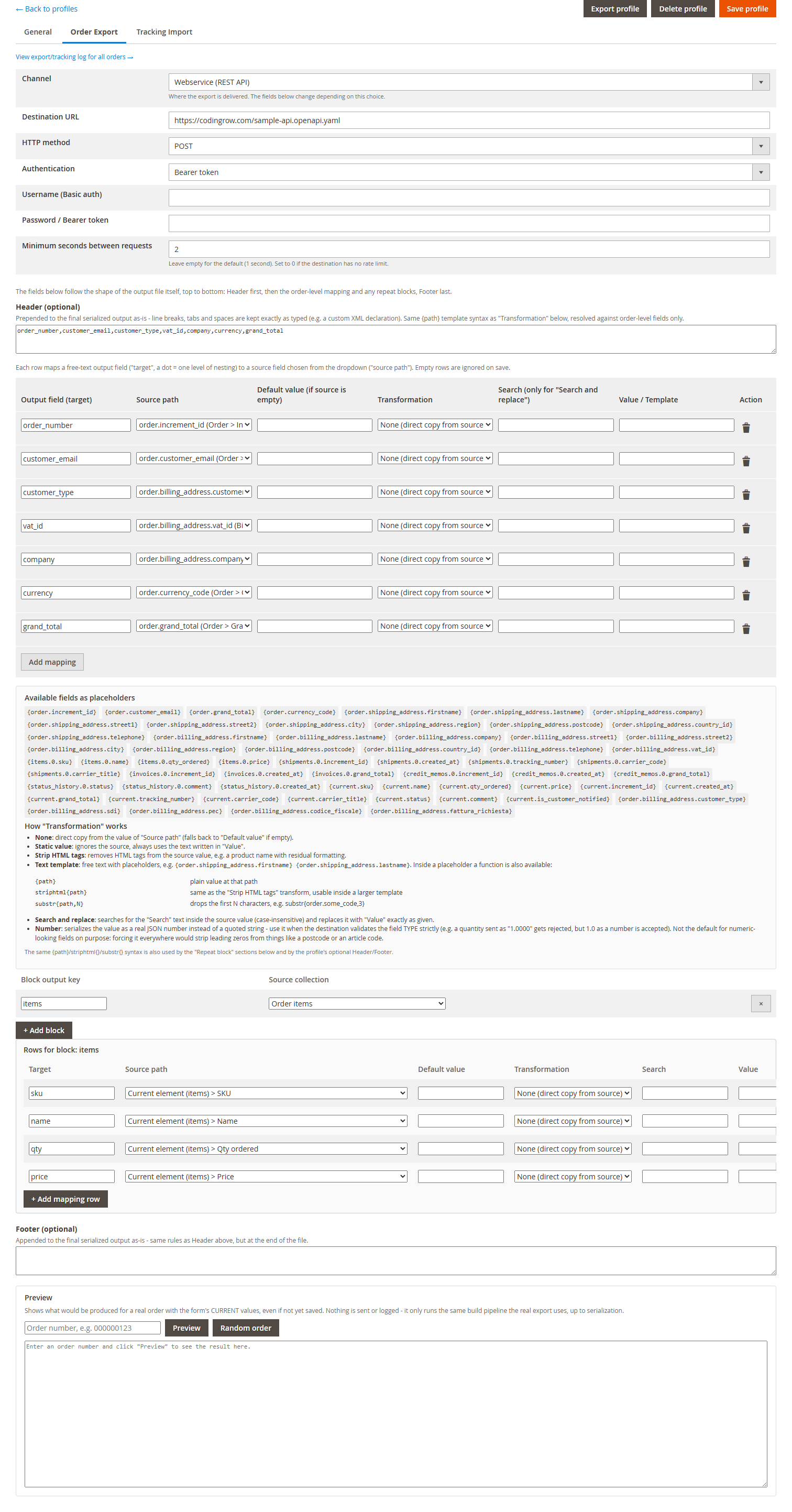
L'onglet Mapping est un tableau de lignes, chacune reliant une target (le nom
du champ dans la sortie — un point indique un niveau d'imbrication, par ex. customer.email)
à un source path choisi dans une liste déroulante regroupant tous les champs
disponibles de la commande/du client/de l'article. Les lignes vides sont ignorées à l'enregistrement.
Les lignes sont lues de haut en bas dans le même ordre que la sortie elle-même : d'abord un modèle Header optionnel, puis les lignes de mapping au niveau commande, puis les éventuels Repeat blocks (voir plus bas), et enfin un modèle Footer optionnel.
Transformations
Chaque ligne de mapping peut appliquer une transformation à la valeur source avant qu'elle ne soit écrite dans le champ cible :
| Transformation | Ce qu'elle fait |
|---|---|
| Aucune | Copie directe de la valeur du source path (revient à "Default value" quand la source est vide). |
| Valeur statique | Ignore totalement la source, écrit toujours le texte fixe défini dans "Value". |
| Supprimer les balises HTML | Supprime le balisage HTML de la valeur source — utile pour un nom ou une description de produit qui contient un formatage résiduel. |
| Modèle de texte | Texte libre avec des placeholders, par ex.
{order.shipping_address.firstname} {order.shipping_address.lastname}.
Une fonction est aussi disponible à l'intérieur d'un placeholder :
striphtml{path} (identique à la transformation Strip HTML tags, utilisable en
ligne) et substr{path,N} (retire les N premiers caractères, par ex.
substr{order.some_code,3}). |
| Rechercher et remplacer | Recherche le texte "Search" dans la valeur source (insensible à la casse) et le remplace par "Value" exactement tel que saisi. |
| Nombre | Sérialise la valeur comme un vrai nombre JSON au lieu
d'une chaîne entre guillemets — à utiliser quand la destination valide strictement le TYPE
du champ (une quantité envoyée comme chaîne brute de base de données "1.0000"
est rejetée par certaines API, alors que 1.0 en tant que vrai nombre est
accepté). Ce n'est pas le comportement par défaut pour les champs à
l'aspect numérique, volontairement : l'activer partout supprimerait silencieusement les
zéros non significatifs de choses comme un code postal ou un code article — c'est donc un
choix à activer ligne par ligne, pas un comportement automatique. |
La même syntaxe {path} / striphtml{} / substr{}
utilisée dans les lignes Text template est aussi disponible dans les lignes des Repeat blocks et
dans le Header/Footer optionnel du profil.
Blocs répétitifs
Un bloc répétitif construit un tableau imbriqué dans la sortie — le cas le plus courant est une entrée par article de commande. Chaque bloc a une Block output key (où le tableau est écrit dans la sortie) et une source collection (sur quoi il itère, par ex. les articles de la commande), plus son propre jeu de lignes de mapping en dessous, évaluées une fois par élément avec "current" limité à cet élément — le source path d'une ligne à l'intérieur d'un bloc répétitif fait donc référence aux champs de l'article courant, pas à la commande dans son ensemble.
items, la source
collection "Order items", et deux lignes (sku ← SKU de l'article courant,
qty ← quantité de l'article courant) produit :
{
  "items": [
    { "sku": "43241", "qty": 2 }
  ]
}Conditions de déclenchement
L'onglet General propose un constructeur de conditions AND/OR imbriquées — la même interface
arborescente que les Cart Price Rules de Magento (un lien "Add" sur chaque groupe pour ajouter
une condition ou un sous-groupe imbriqué, une icône de suppression sur chaque nœud) — qui décide
à la fois quelles lignes de commande un profil exporte réellement et
si le profil exporte la commande ou non. Chaque condition compare un attribut produit (par ex.
sku, un attribut personnalisé "supplier code", price...) à une valeur,
avec un opérateur : égal à/différent de, contient/ne contient pas, commence par/se termine par,
supérieur à/inférieur à (ou égal à), est vide/n'est pas vide.
Les conditions à l'intérieur d'un groupe se combinent avec ALL (AND) ou ANY (OR), et les
groupes peuvent s'imbriquer les uns dans les autres — par exemple sku contains "ABC" OR
(supplier_code = "Supplier2" AND price > 10). Aucune condition configurée = aucun
filtre, toutes les lignes sont exportées (comme l'ancien "Uniquement les articles du fournisseur"
= "No" avant la version 1.3.0).
Utilisation type avec plusieurs fournisseurs en dropshipping : un profil par
fournisseur, chacun avec sa propre condition (par ex. Profil A : supplier_code =
"Supplier1", Profil B : supplier_code = "Supplier2") — une commande
contenant des articles des deux fournisseurs déclenche correctement les deux profils en
parallèle, chacun n'exportant que les lignes qui lui appartiennent. Si aucune ligne ne correspond
aux conditions d'un profil donné, ce profil n'exporte simplement pas cette commande (voir le
statut de journal "Skipped" ci-dessous) — ce n'est pas une erreur.
Chaque attribut utilisé dans une condition devient automatiquement disponible comme champ
mappable dans le payload (items.attributes.<code>, voir Mapping des champs
ci-dessus). Lorsque les conditions excluent des lignes d'une commande, l'aperçu en direct affiche un avertissement explicite indiquant combien de
lignes ont été écartées et pourquoi — un payload vide ou plus court que prévu n'est donc jamais
une surprise silencieuse.
Aperçu en direct
Le bouton Preview sur la page d'édition du profil construit un profil temporaire, jamais enregistré, à partir de ce qui se trouve actuellement dans le formulaire — y compris les modifications que vous n'avez pas encore enregistrées — et l'exécute sur une commande réelle de votre choix, en passant exactement par le même code que pour un export réel. Le résultat est le payload JSON/XML/CSV littéral que cette commande produirait, vous pouvez donc corriger le mapping avant même d'activer le profil, plutôt que de le découvrir suite à un échec d'export réel.
Déclencheur & déduplication
La liste à sélection multiple Statut déclencheur de l'onglet General indique quel(s) statut(s) de commande démarre(nt) un export automatique pour ce profil (Ctrl/Cmd-clic pour en sélectionner plusieurs) — elle n'est vérifiée que pour le déclenchement automatique piloté par événement ; l'action manuelle depuis la grille et la commande CLI l'ignorent volontairement, puisque déclencher à la main est en soi le choix délibéré d'exporter quel que soit le statut. L'action manuelle "Export via Codingrow Order Export" de la grille Sales > Orders exécute en un clic tous les profils actifs sur les commandes sélectionnées — les Conditions de déclenchement propres à chaque profil décident de ce qu'il envoie réellement, exactement comme pour le déclenchement automatique.
Chaque tentative est inscrite dans le journal de ce profil (voir plus bas), et c'est aussi le journal qui évite les doublons : la même commande n'est jamais exportée deux fois automatiquement par le même profil, quoi qu'il arrive ensuite à la commande (modifications ultérieures, changements de statut dans un sens ou dans l'autre). Si un renvoi réel est nécessaire — après correction d'un problème côté destination, par exemple — utilisez Forcer le réenvoi, qui contourne explicitement cette protection.
Import du suivi
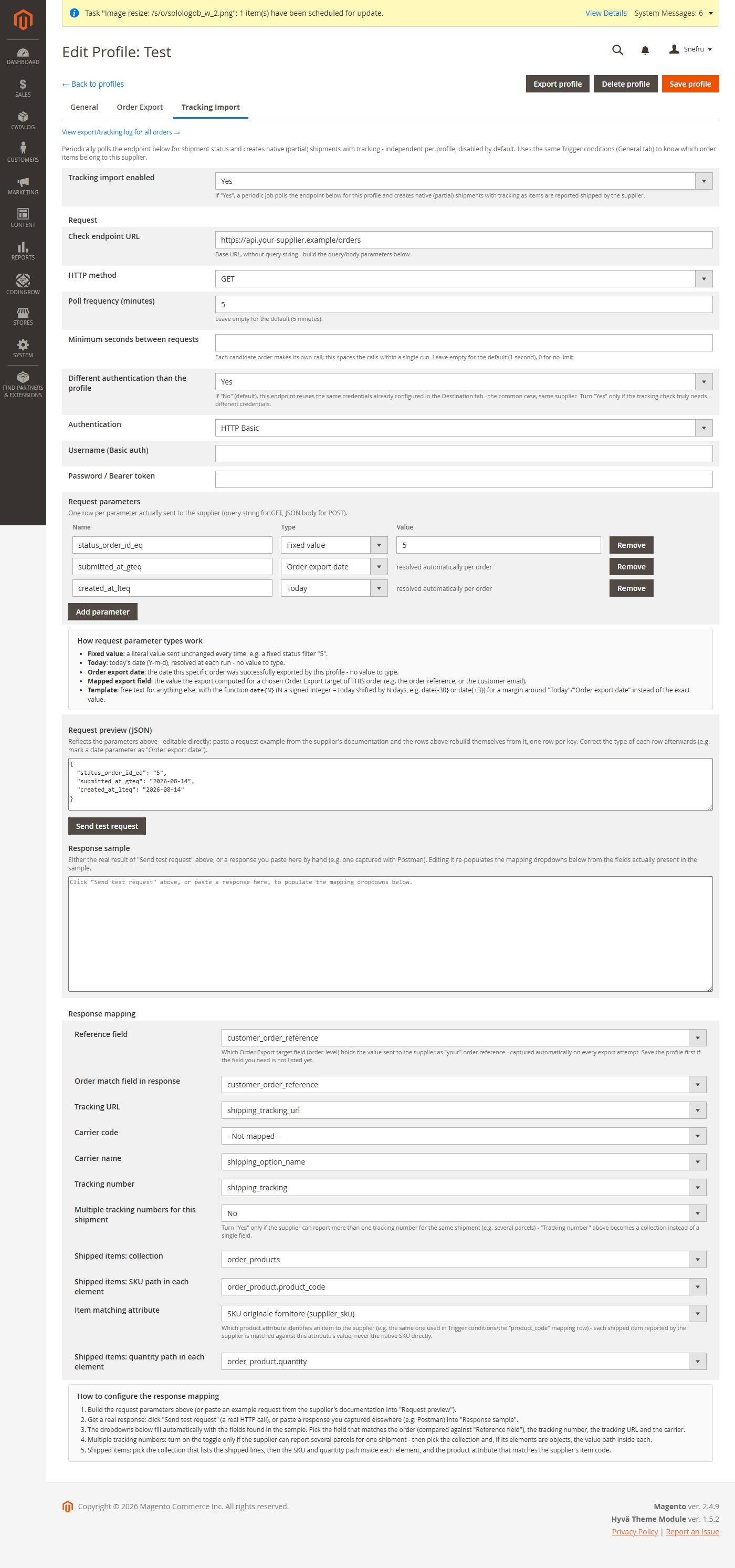
Un onglet Import du suivi par profil (désactivé par défaut) exécute une vérification automatique par commande — repensée dans la v1.5.0. Chaque commande que ce profil a exportée avec succès, qui a encore des articles à expédier et qui n'a pas plus de 45 jours, est interrogée individuellement sur son propre état d'expédition ; pour les articles signalés comme expédiés, elle crée une expédition Magento native avec son numéro de suivi, en réutilisant les propres Conditions de déclenchement du profil pour savoir quels articles de la commande lui appartiennent. Il n'y a aucune fenêtre de dates en lot — le modèle est strictement une requête par commande ouverte à chaque cycle.
Une commande toujours pas entièrement expédiée après 45 jours sort du cycle automatique : elle est écrite une seule fois dans le journal avec le statut Timeout (plus un email éventuel), de sorte qu'elle n'interroge jamais le fournisseur indéfiniment.
Request. La moitié supérieure de l'onglet définit l'appel sortant :
| Champ | Signification |
|---|---|
| Check endpoint URL | URL de base du point d'accès de statut du fournisseur, sans aucune query string. |
| HTTP method | GET ou POST. |
| Poll frequency (minutes) | À quelle fréquence le cron de ce profil se déclenche. |
| Minimum seconds between requests | Limite de débit entre les appels individuels par commande d'un même cycle (par défaut 1s ; 0 = aucune limite). |
| Different authentication than the profile | Sur Non (par défaut) la vérification réutilise les identifiants du canal du profil ; sur Oui le point d'accès de suivi a sa propre authentification. |
| Request parameters | Une grille de lignes Name + Type + Value, une par paramètre envoyé au point d'accès (voir les cinq types de paramètre ci-dessous). |
| Request preview (JSON) | Aperçu en direct de l'appel exact ; le bouton Send test request voisin déclenche un véritable appel HTTP, et coller un exemple de requête dans l'aperçu reconstruit les lignes de paramètres à partir de celui-ci. |
Chaque ligne de Request parameters choisit l'un des cinq Types de valeur :
| Type | Valeur envoyée |
|---|---|
| Fixed value | Le texte littéral saisi dans Value. |
| Today | La date du jour (Y-m-d). |
| Order export date | La date à laquelle cette commande a été exportée. |
| Mapped export field | La valeur que l'export a calculée pour une cible choisie de cette commande — par ex. la référence de commande côté fournisseur. |
| Template | Texte libre avec la fonction date{N} (aujourd'hui
±N jours), par ex. date{-7}. |
Response mapping. La moitié inférieure mappe la réponse du fournisseur. Vous ne saisissez jamais les chemins de la réponse à la main : obtenez une réponse réelle — avec Send test request, ou en collant une réponse capturée dans l'encadré Response sample — et chaque liste déroulante ci-dessous se remplit à partir des champs réellement trouvés dans cette réponse.
| Champ | Signification |
|---|---|
| Reference field | Quelle cible d'Order Export contient la référence de commande (capturée à chaque tentative d'export, réussie ou échouée). |
| Order match field in response | Le champ de la réponse auquel elle est comparée pour identifier la bonne commande. |
| Tracking number / Tracking URL | Champs de la réponse contenant le numéro de suivi et, le cas échéant, son lien cliquable. |
| Carrier code / Carrier name | Champs de la réponse contenant l'identifiant du transporteur et son libellé. |
| Multiple tracking numbers for this shipment | Interrupteur pour les fournisseurs qui renvoient plus d'un numéro de suivi par expédition ; il révèle Tracking numbers: collection (le tableau des entrées de suivi) et Tracking numbers: value path in each element (où se trouve le numéro dans chaque entrée). |
| Shipped items: collection | Le tableau de la réponse qui liste les articles expédiés. |
| Shipped items: SKU path in each element / Shipped items: quantity path in each element | Où se trouvent le code article et la quantité expédiée dans chaque élément de ce tableau. |
| Item matching attribute | L'attribut produit permettant de reconnaître les articles du fournisseur, puisque les fournisseurs signalent leur propre code, pas le SKU Magento. |
Expéditions partielles. Si une commande contient des articles de plusieurs fournisseurs (ou qu'un fournisseur expédie en plusieurs vagues), chaque vérification ne crée une expédition que pour les articles réellement signalés comme expédiés à ce moment-là, jamais au-delà de ce qu'il reste à expédier — qu'une commande se retrouve légitimement avec plusieurs expéditions au fil du temps est donc le comportement attendu, pas un bug.
Email client. Lorsque le fournisseur fournit un lien de suivi cliquable (une URL, pas seulement un numéro), le client reçoit un email avec un bouton "Suivez votre colis" au lieu de l'email Magento natif classique (qui n'afficherait que le numéro, sans lien cliquable pour un transporteur que Magento ne reconnaît pas nativement). Lorsque le fournisseur ne fournit pas d'URL, l'email natif standard est utilisé, sans modification.
Migration automatique. Les profils déjà configurés avec la version précédente sont migrés automatiquement lors de la mise à jour — aucune reconfiguration n'est nécessaire.
Aucune action manuelle n'est nécessaire en fonctionnement normal : les vérifications par commande s'exécutent d'elles-mêmes en arrière-plan au rythme configuré (le cron Magento doit être actif, comme pour toute tâche planifiée).
https://codingrow.com/sample-tracking.jsonOpenAPI:
https://codingrow.com/sample-api.openapi.yamlJournal & réexpédition forcée
Depuis la version 1.4.0, le journal n'est plus scindé par profil (un onglet Journal à l'intérieur de chaque profil). Une page Journal unique (bouton sur la grille Export Profiles) liste les commandes — et non les tentatives individuelles — une par ligne, paginée, avec le dernier statut d'export et le dernier statut de suivi côte à côte : un seul coup d'œil suffit pour une commande, même lorsque plusieurs profils/fournisseurs sont impliqués.
Cliquer sur Voir l'historique complet ouvre l'historique complet de cette commande, divisé en deux sections — Journal d'export et Journal de suivi — listant chacune chaque tentative/vérification de chaque profil impliqué, avec une ligne de détails dépliable (payload de requête exact envoyé, corps de réponse reçu) et, côté export, un bouton Forcer le réenvoi par ligne.
Côté export, une tentative est Success, Error ou Skipped. Skipped n'est pas une erreur : aucun article de la commande n'a correspondu aux Conditions de déclenchement de ce profil, donc rien n'a été envoyé — utile avec plusieurs profils/fournisseurs pour voir en un coup d'œil pourquoi un profil donné n'a pas exporté une commande donnée. Côté suivi, une vérification en échec signifie généralement juste que le fournisseur n'a pas encore signalé d'expédition pour ces articles ; elle est retentée automatiquement à la prochaine vérification, sans action manuelle nécessaire.
Le bouton Forcer le réenvoi d'une ligne en échec ou ignorée (côté export uniquement) relance immédiatement l'export pour exactement cette commande à travers exactement ce profil, en ignorant la protection contre les doublons — une boîte de dialogue de confirmation le précise d'abord, car il s'agit d'un contournement délibéré, disponible aussi bien depuis la page Journal principale que depuis le détail de la commande. Le suivi n'a pas d'équivalent "forcer la vérification" manuel : la prochaine vérification planifiée réessaie simplement.
Emails de notification d'échec
Deux réglages de l'onglet General contrôlent les notifications d'échec, indépendamment du journal (qui enregistre toujours chaque tentative quels que soient ces réglages) : Destinataires des notifications (une ou plusieurs adresses email, séparées par des virgules — laissez vide pour ne rien envoyer) et Envoyer un email pour (quels événements déclenchent une notification).
Le corps de l'email inclut l'erreur réelle renvoyée par la destination, pas seulement une
ligne de statut HTTP générique : lorsque le corps de la réponse est un JSON analysable avec un
champ message, ce message est repris tel quel (par ex. "Destination returned HTTP
422 - Minimum product quantity is 1.0") ; sinon, le corps brut de la réponse est inclus, tronqué
à 500 caractères — la cause réelle est ainsi visible directement depuis la boîte de réception,
sans avoir à ouvrir le journal.
Importer / exporter un profil
Le bouton Exporter le profil sur la page d'édition d'un profil télécharge sa configuration complète — réglages généraux, destination, lignes de mapping et blocs répétitifs — sous forme d'un seul fichier JSON, dont les identifiants de destination sont volontairement exclus afin que le fichier puisse être stocké, partagé avec le support, ou versionné aux côtés d'un déploiement en toute sécurité. Le bouton Importer un profil de la grille Export Profiles recrée un profil à partir d'un tel fichier — l'usage typique est de déplacer un profil d'un store de préproduction/démo vers la production, ou de conserver une sauvegarde d'un mapping qui vous convient avant d'expérimenter davantage. Les identifiants doivent toujours être ressaisis à la main après un import, puisqu'ils n'ont jamais été présents dans le fichier.
Licence
Une licence par domaine, saisie dans Admin → Stores → Configuration → Codingrow → Order Export & Tracking Import → License → Clé de licence. Inclut toutes les mises à jour pour ce domaine. Besoin de passer à un autre domaine (préproduction → production, ou une migration de site) ? Votre premier changement de domaine est gratuit et instantané depuis votre page de compte — aucune attente, aucun ticket nécessaire. À partir du deuxième changement, un changement est autorisé une fois par an. Vous pouvez également demander un remboursement dans les 30 jours suivant l'achat, par vous-même, depuis la même page de compte.