Installation
Voraussetzungen
Magento 2.4.x — getestet mit 2.4.9, kompatibel mit vorherigen 2.4.*-Versionen. PHP 8.1–8.5. Erfordert codingrow/module-core (wird automatisch als Composer-Abhängigkeit installiert) für das gemeinsame Codingrow-Admin-Menü und die Lizenzvalidierung.
Einrichtungsschritte
- Fügen Sie die per E-Mail erhaltenen Zugangsdaten zu
auth.jsonim Stammverzeichnis Ihres Magento-Projekts hinzu:{ "http-basic": { "repo.codingrow.com": { "username": "...", "password": "..." } } } composer config repositories.codingrow composer https://repo.codingrow.comcomposer require codingrow/module-oetibin/magento module:enable Codingrow_Oetibin/magento setup:upgrade && bin/magento setup:di:compile && bin/magento cache:flush- Fügen Sie Ihren Lizenzschlüssel in Admin → Stores → Configuration → Codingrow → Order Export & Tracking Import → License → Lizenzschlüssel ein, speichern Sie, dann
bin/magento cache:flush. - Setzen Sie in derselben Sektion, Gruppe General, Modul aktivieren auf "Yes" — das Modul wird auf Magento-Ebene aktiviert ausgeliefert, ist aber funktional deaktiviert, sodass es erst nach ausdrücklicher Aktivierung überhaupt etwas exportiert.
- Erstellen Sie Ihr erstes Profil unter Codingrow → Order Export & Tracking Import → Export Profiles — siehe Profile weiter unten.
Die gesamte Profilverwaltung, der Mapping-Builder, das Protokoll und jede Benachrichtigungs-E-Mail sind in 7 Sprachen verfügbar, automatisch ausgewählt je nach Sprache des Admin-Benutzers:
Admin-Konfiguration
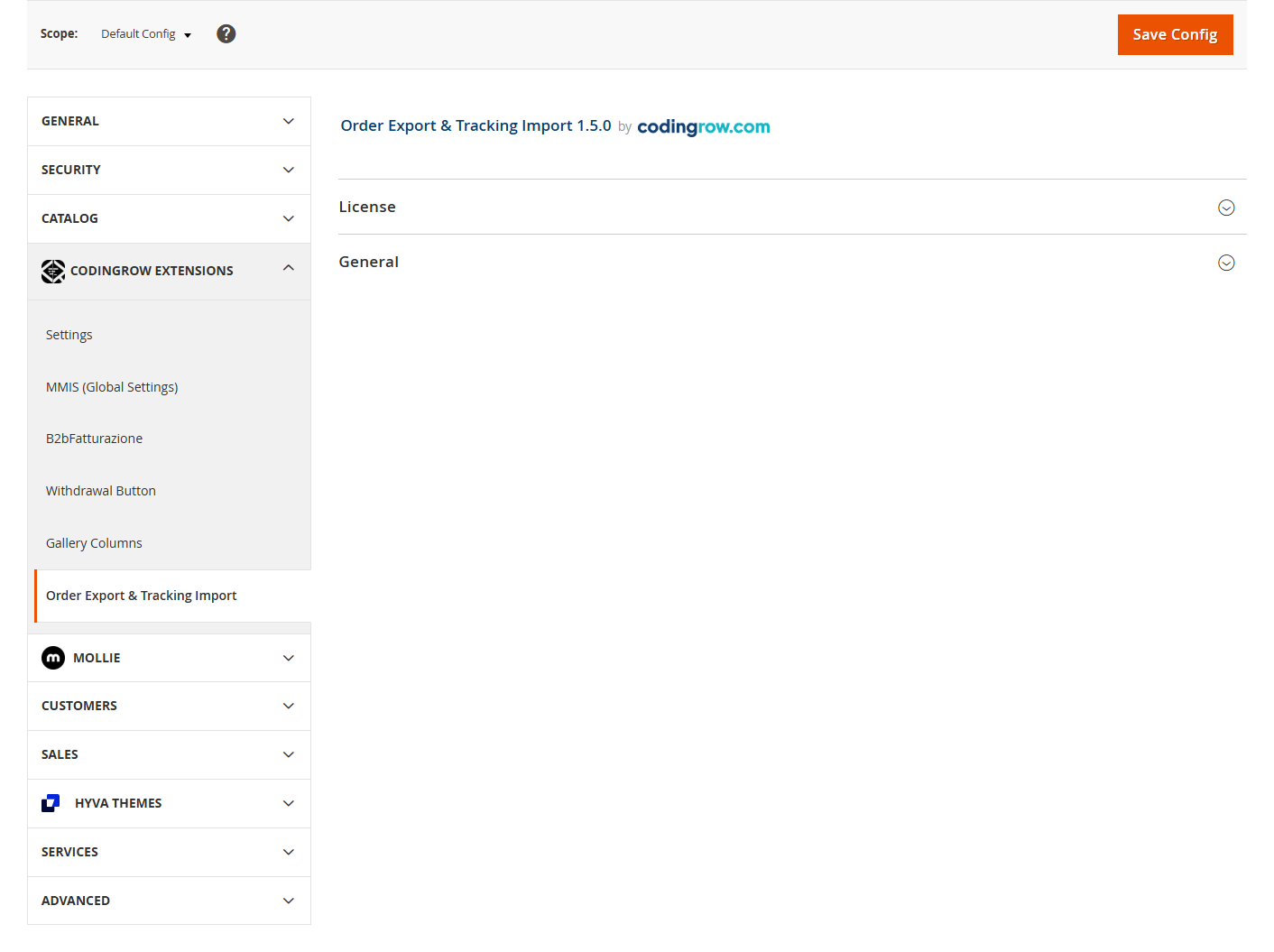
Die Konfiguration liegt unter Stores → Configuration → Codingrow Extensions → Order Export & Tracking Import (Lizenz plus die Export-/Tracking-Einstellungen). Export-Profile und ihr Feld-Mapping / Auslösebedingungen werden im eigenen Order-Export-Raster verwaltet.
Deinstallation
composer remove codingrow/module-oeti dann
bin/magento setup:upgrade && bin/magento setup:di:compile && bin/magento cache:flush.
Profile und das Export-/Tracking-Protokoll (codingrow_oeti_profile,
codingrow_oeti_log, codingrow_oeti_tracking_log) werden nie automatisch gelöscht —
verwenden Sie zuerst Profil exportieren, wenn Sie eine Kopie
Ihrer Profilkonfiguration behalten möchten.
Benutzerhandbuch
Profile
Alles im Modul ist um Profile herum organisiert, aufgelistet unter Codingrow → Order Export & Tracking Import → Export Profiles. Jedes Profil ist vollständig unabhängig: eigener Name, eigener Ein-/Aus-Schalter, eigener/e Trigger-Status, eigenes Ziel (Kanal + Format), eigenes Feld-Mapping und eigene Zeile im Exportprotokoll — Sie können beliebig viele Profile parallel betreiben (eines pro Lieferant, eines pro Spediteur, eines für ein internes ERP), und das Deaktivieren oder Löschen eines Profils wirkt sich nie auf die anderen aus.
Ein deaktiviertes Profil (Profil aktiviert = "No") exportiert nie etwas, unabhängig davon, ob automatisch ausgelöst, über die manuelle Aktion oder über den CLI-Befehl — dies ist unabhängig vom modulweiten Schalter Modul aktivieren unter System Config, der als einziger Hauptschalter alle Profile gleichzeitig abschaltet.
Kanäle & Formate
Jedes Profil wählt einen Kanal (wohin das Payload geliefert wird) und ein Format (wie es serialisiert wird) — die beiden Entscheidungen sind unabhängig, jedes Format funktioniert also mit jedem Kanal.
| Kanal | Typische Nutzung | Wichtige Einstellungen |
|---|---|---|
| REST API | Sendet das Payload als HTTP-Anfrage an einen Webservice | Ziel-URL, HTTP-Methode (GET/POST/PUT/PATCH), Authentifizierung (Keine, HTTP Basic, Bearer-Token), Mindestsekunden zwischen Anfragen (Rate-Limiting, standardmäßig 1 Sekunde) |
| FTP / SFTP | Lädt das Payload als Datei auf einen entfernten Server hoch | Host, Port (standardmäßig 21), Benutzername, Passwort, entfernter Pfad, optionales FTPS (explizites TLS), passiver Modus |
| Lokale Datei | Schreibt das Payload in eine Datei unter dem
eigenen pub/media/ dieses Stores, damit ein externes System sie per HTTP abholen kann |
Unterordner — die Datei landet unter
pub/media/codingrow_oeti/<Unterordner>/ (Standard-Unterordner:
"default") |
Formate: JSON, XML oder CSV, unabhängig vom obigen Kanal wählbar — dasselbe Feld-Mapping (siehe unten) steuert alle drei, das Format ändert nur die Art der Serialisierung.
Feld-Mapping
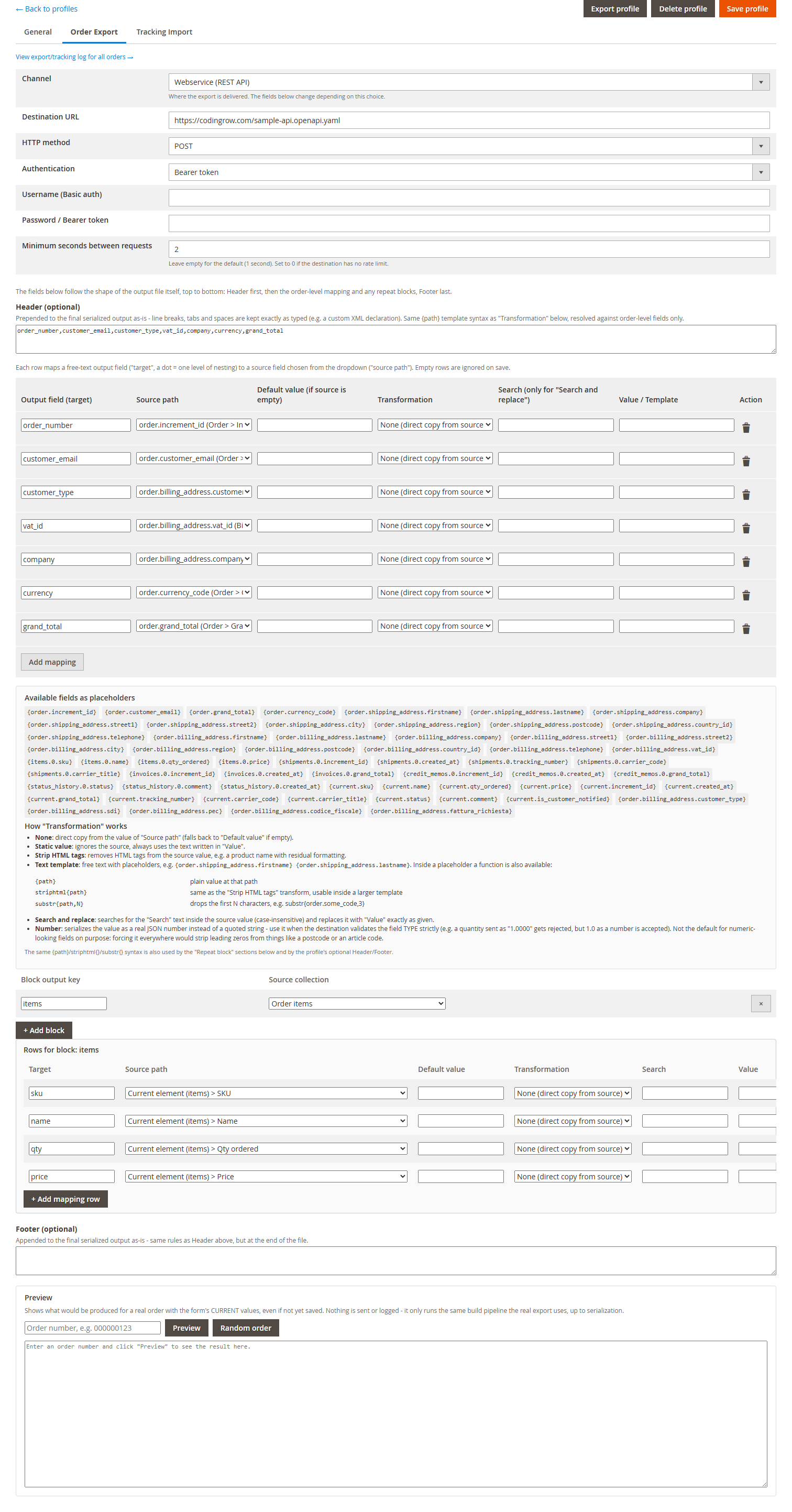
Der Tab Mapping ist eine Tabelle mit Zeilen, die jeweils ein target (den
Feldnamen in der Ausgabe — ein Punkt bedeutet eine Verschachtelungsebene, z. B.
customer.email) mit einem source path verbinden, der aus einer
Dropdown-Liste aller verfügbaren Bestell-/Kunden-/Artikelfelder gewählt wird. Leere Zeilen werden
beim Speichern ignoriert.
Die Zeilen werden von oben nach unten in derselben Form wie die Ausgabe selbst gelesen: zuerst eine optionale Header-Vorlage, dann die Mapping-Zeilen auf Bestellebene, dann etwaige Repeat blocks (siehe unten), und zuletzt eine optionale Footer-Vorlage.
Transformationen
Jede Mapping-Zeile kann eine Transformation auf den Quellwert anwenden, bevor er in das Zielfeld geschrieben wird:
| Transformation | Was sie tut |
|---|---|
| Keine | Direkte Kopie des Werts des source path (fällt auf "Default value" zurück, wenn die Quelle leer ist). |
| Statischer Wert | Ignoriert die Quelle vollständig, schreibt immer den festen Text aus "Value". |
| HTML-Tags entfernen | Entfernt HTML-Markup aus dem Quellwert — nützlich für einen Produktnamen oder eine Beschreibung mit restlicher Formatierung. |
| Textvorlage | Freier Text mit Platzhaltern, z. B.
{order.shipping_address.firstname} {order.shipping_address.lastname}.
Innerhalb eines Platzhalters steht auch eine Funktion zur Verfügung:
striphtml{path} (entspricht der Transformation Strip HTML tags, inline
nutzbar) und substr{path,N} (entfernt die ersten N Zeichen, z. B.
substr{order.some_code,3}). |
| Suchen und ersetzen | Sucht den Text "Search" im Quellwert (Groß-/Kleinschreibung wird ignoriert) und ersetzt ihn genau wie angegeben durch "Value". |
| Zahl | Serialisiert den Wert als echte JSON-Zahl statt als
Zeichenkette in Anführungszeichen — nutzen Sie dies, wenn das Ziel den TYP des Feldes
strikt validiert (eine als datenbankrohe Zeichenkette "1.0000" gesendete
Menge wird von manchen APIs abgelehnt, während 1.0 als echte Zahl akzeptiert
wird). Dies ist bewusst nicht die Vorgabe für numerisch aussehende Felder:
sie überall zu aktivieren würde stillschweigend führende Nullen aus Dingen wie einer
Postleitzahl oder einem Artikelcode entfernen — es ist daher eine pro Zeile bewusst
gewählte Option, kein automatisches Verhalten. |
Dieselbe {path} / striphtml{} / substr{}-Syntax, die in
Text-template-Zeilen verwendet wird, steht auch in Repeat-block-Zeilen und im optionalen
Header/Footer des Profils zur Verfügung.
Wiederholungsblöcke
Ein Wiederholungsblock erstellt ein verschachteltes Array in der Ausgabe — der häufigste Fall ist ein Eintrag pro Bestellposition. Jeder Block hat einen Block output key (wo das Array in der Ausgabe geschrieben wird) und eine source collection (worüber er iteriert, z. B. die Artikel der Bestellung), sowie seine eigenen Mapping-Zeilen darunter, die einmal pro Element ausgewertet werden, wobei "current" auf dieses Element beschränkt ist — der source path einer Zeile innerhalb eines Wiederholungsblocks bezieht sich also auf Felder des aktuellen Artikels, nicht auf die gesamte Bestellung.
items, der source
collection "Order items" und zwei Zeilen (sku ← SKU des aktuellen Artikels,
qty ← Menge des aktuellen Artikels) erzeugt:
{
  "items": [
    { "sku": "43241", "qty": 2 }
  ]
}Auslösebedingungen
Der Tab General bietet einen Builder für verschachtelte AND/OR-Bedingungen — dieselbe
baumartige Oberfläche wie Magentos eigene Cart Price Rules (ein "Add"-Link an jeder Gruppe, um
eine Bedingung oder eine verschachtelte Untergruppe hinzuzufügen, ein Entfernen-Symbol an jedem
Knoten) — die sowohl entscheidet, welche Bestellzeilen ein Profil tatsächlich
exportiert, als auch, ob das Profil die Bestellung überhaupt exportiert. Jede
Bedingung vergleicht ein Produktattribut (z. B. sku, ein benutzerdefiniertes
"supplier code"-Attribut, price ...) mit einem Wert, über einen Operator: gleich/
ungleich, enthält/enthält nicht, beginnt mit/endet mit, größer als/kleiner als (oder gleich),
ist leer/ist nicht leer.
Bedingungen innerhalb einer Gruppe werden mit ALL (AND) oder ANY (OR) verknüpft, und Gruppen
können ineinander verschachtelt werden — zum Beispiel sku contains "ABC" OR
(supplier_code = "Supplier2" AND price > 10). Keine Bedingungen konfiguriert = kein
Filter, jede Zeile wird exportiert (wie beim alten "Only supplier items" = "No" vor Version
1.3.0).
Typische Verwendung mit mehreren Dropshipping-Lieferanten: ein Profil pro
Lieferant, jeweils mit eigener Bedingung (z. B. Profil A: supplier_code =
"Supplier1", Profil B: supplier_code = "Supplier2") — eine Bestellung mit
Artikeln beider Lieferanten löst korrekt beide Profile parallel aus, wobei jedes nur die zu ihm
gehörenden Zeilen exportiert. Wenn keine Zeile den Bedingungen eines bestimmten Profils
entspricht, exportiert dieses Profil die Bestellung einfach nicht (siehe den Protokollstatus
"Skipped" unten) — das ist kein Fehler.
Jedes in einer Bedingung verwendete Attribut wird automatisch als zuordenbares Feld im
Payload verfügbar (items.attributes.<code>, siehe Feld-Mapping oben). Wenn
die Bedingungen Zeilen aus einer Bestellung ausschließen, zeigt die Live-Vorschau eine ausdrückliche Warnung, die angibt, wie viele Zeilen aus
welchem Grund ausgelassen wurden — ein leeres oder kürzer als erwartetes Payload ist so nie eine
stille Überraschung.
Live-Vorschau
Die Schaltfläche Preview auf der Profil-Bearbeitungsseite erstellt ein temporäres, nie gespeichertes Profil aus dem aktuellen Inhalt des Formulars — einschließlich noch nicht gespeicherter Änderungen — und führt es anhand einer von Ihnen gewählten echten Bestellung genau über denselben Codepfad aus, der auch für einen echten Export verwendet wird. Das Ergebnis ist genau das JSON/XML/CSV-Payload, das diese Bestellung erzeugen würde, sodass Sie das Mapping korrigieren können, bevor das Profil überhaupt aktiviert wird — statt es erst nach einem fehlgeschlagenen echten Export zu bemerken.
Trigger & Deduplizierung
Die Mehrfachauswahl Auslösestatus im Tab General listet auf, welche(r) Bestellstatus einen automatischen Export für dieses Profil startet/starten (Strg/Cmd-Klick, um mehrere auszuwählen) — sie wird nur beim automatischen, ereignisgesteuerten Trigger geprüft; die manuelle Aktion in der Übersicht und der CLI-Befehl ignorieren sie absichtlich, da das manuelle Auslösen selbst schon die bewusste Entscheidung ist, unabhängig vom Status zu exportieren. Die manuelle Aktion "Export via Codingrow Order Export" in der Sales > Orders-Übersicht führt mit einem Klick jedes aktivierte Profil für die ausgewählten Bestellungen aus — die eigenen Auslösebedingungen jedes Profils entscheiden, was es tatsächlich sendet, genau wie beim automatischen Trigger.
Jeder Versuch wird in das Protokoll dieses Profils geschrieben (siehe unten), und das Protokoll ist auch das, was Duplikate verhindert: dieselbe Bestellung wird von demselben Profil nie automatisch zweimal exportiert, unabhängig davon, was danach mit der Bestellung geschieht (weitere Bearbeitungen, Statuswechsel hin und her). Wird ein echtes erneutes Senden benötigt — zum Beispiel nach der Behebung eines Problems auf Zielseite — verwenden Sie Erneutes Senden erzwingen, was diesen Schutz ausdrücklich umgeht.
Tracking-Import
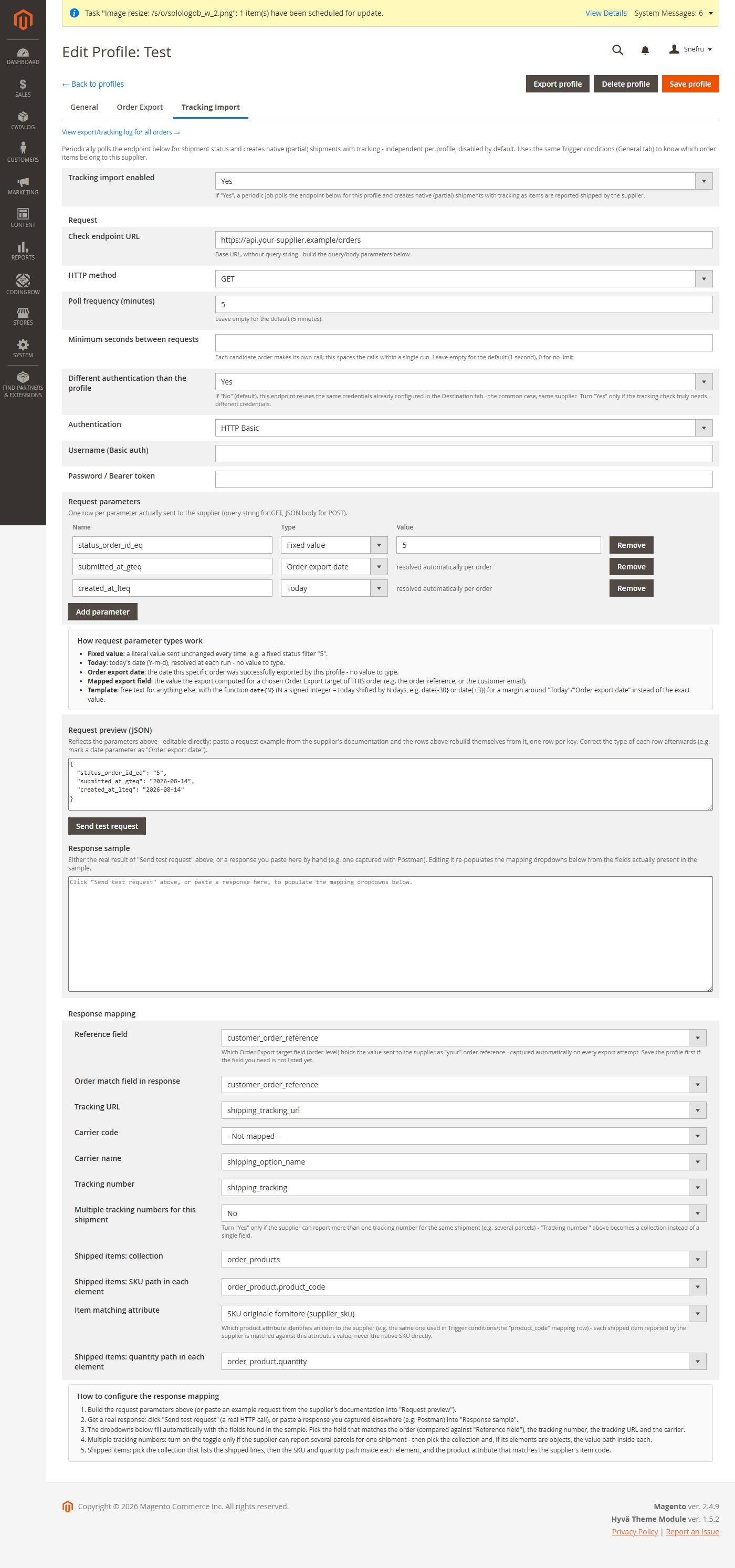
Ein Tab Tracking Import pro Profil (standardmäßig deaktiviert) führt eine automatische Abfrage pro Bestellung aus — in v1.5.0 neu gestaltet. Jede Bestellung, die dieses Profil erfolgreich exportiert hat, die noch zu versendende Artikel enthält und nicht älter als 45 Tage ist, wird einzeln nach ihrem eigenen Versandstatus abgefragt; für die als versendet gemeldeten Artikel erstellt sie eine native Magento-Lieferung samt Sendungsnummer, unter Wiederverwendung der eigenen Auslösebedingungen des Profils, um zu wissen, welche Artikel der Bestellung zu ihm gehören. Es gibt kein Sammel-Datumsfenster — das Modell ist strikt eine Anfrage pro offener Bestellung je Durchlauf.
Eine Bestellung, die nach 45 Tagen noch nicht vollständig versendet ist, verlässt den automatischen Ablauf: Sie wird einmal mit dem Status Timeout ins Protokoll geschrieben (samt optionaler E-Mail), sodass sie den Lieferanten nie endlos abfragt.
Request. Die obere Hälfte des Tabs definiert den ausgehenden Aufruf:
| Feld | Bedeutung |
|---|---|
| Check endpoint URL | Basis-URL des Status-Endpunkts des Lieferanten, ohne jegliche Query-String. |
| HTTP method | GET oder POST. |
| Poll frequency (minutes) | Wie oft der Cron dieses Profils ausgelöst wird. |
| Minimum seconds between requests | Ratenbegrenzung zwischen den einzelnen Aufrufen pro Bestellung innerhalb eines Durchlaufs (Standard 1s; 0 = keine Begrenzung). |
| Different authentication than the profile | Bei Nein (Standard) nutzt die Prüfung die Zugangsdaten des Profil-Kanals; bei Ja erhält der Tracking-Endpunkt eine eigene Authentifizierung. |
| Request parameters | Ein Raster aus Name- + Type- + Value-Zeilen, eine pro an den Endpunkt gesendetem Parameter (siehe die fünf Parametertypen unten). |
| Request preview (JSON) | Live-Vorschau des exakten Aufrufs; die daneben liegende Schaltfläche Send test request löst einen echten HTTP-Aufruf aus, und das Einfügen eines Beispiel-Requests in die Vorschau rekonstruiert die Parameterzeilen daraus. |
Jede Request parameters-Zeile wählt einen von fünf Wert-Types:
| Type | Gesendeter Wert |
|---|---|
| Fixed value | Der wörtliche Text aus Value. |
| Today | Das heutige Datum (Y-m-d). |
| Order export date | Das Datum, an dem diese Bestellung exportiert wurde. |
| Mapped export field | Der Wert, den der Export für ein gewähltes Ziel dieser Bestellung berechnet hat — z. B. die Bestellreferenz beim Lieferanten. |
| Template | Freier Text mit der Funktion date{N} (heute ±N
Tage), z. B. date{-7}. |
Response mapping. Die untere Hälfte ordnet die Antwort des Lieferanten zu. Sie tippen die Antwortpfade nie von Hand ein: Beschaffen Sie sich eine echte Antwort — mit Send test request oder indem Sie eine erfasste Antwort in den Kasten Response sample einfügen — und jedes Dropdown unten wird aus den tatsächlich in dieser Antwort gefundenen Feldern befüllt.
| Feld | Bedeutung |
|---|---|
| Reference field | Welches Order-Export-Ziel die Bestellreferenz enthält (bei jedem Exportversuch erfasst, erfolgreich oder fehlgeschlagen). |
| Order match field in response | Das Antwortfeld, mit dem sie verglichen wird, um die richtige Bestellung zu ermitteln. |
| Tracking number / Tracking URL | Antwortfelder mit der Sendungsnummer und, falls vorhanden, ihrem anklickbaren Link. |
| Carrier code / Carrier name | Antwortfelder mit der Spediteurkennung und ihrer Bezeichnung. |
| Multiple tracking numbers for this shipment | Schalter für Lieferanten, die mehr als eine Sendungsnummer pro Lieferung zurückgeben; er blendet Tracking numbers: collection (das Array der Tracking-Einträge) und Tracking numbers: value path in each element (wo die Nummer in jedem Eintrag steht) ein. |
| Shipped items: collection | Das Array in der Antwort, das die versendeten Artikel auflistet. |
| Shipped items: SKU path in each element / Shipped items: quantity path in each element | Wo der Artikelcode und die versendete Menge in jedem Element dieses Arrays stehen. |
| Item matching attribute | Das Produktattribut, mit dem die Artikel des Lieferanten erkannt werden, da Lieferanten ihren eigenen Code melden, nicht die Magento-SKU. |
Teillieferungen. Enthält eine Bestellung Artikel mehrerer Lieferanten (oder versendet ein Lieferant in mehreren Wellen), erstellt jede Prüfung eine Lieferung nur für die Artikel, die zu diesem Zeitpunkt tatsächlich als versendet gemeldet wurden, nie mehr, als noch offen ist — dass eine Bestellung im Laufe der Zeit rechtmäßig mehrere Lieferungen erhält, ist beabsichtigtes Verhalten, kein Fehler.
Kunden-E-Mail. Liefert der Lieferant einen anklickbaren Tracking-Link (eine URL, nicht nur eine Nummer), erhält der Kunde eine E-Mail mit einer Schaltfläche "Sendung verfolgen" statt der einfachen nativen Magento-E-Mail (die nur die Nummer anzeigen würde, ohne anklickbaren Link für einen Spediteur, den Magento nicht nativ erkennt). Liefert der Lieferant keine URL, wird die native Standard-E-Mail unverändert verwendet.
Automatische Migration. Profile, die bereits mit der vorherigen Version konfiguriert wurden, werden beim Update automatisch migriert — eine Neukonfiguration ist nicht nötig.
Im Normalbetrieb ist kein manuelles Eingreifen nötig: Die Prüfungen pro Bestellung laufen im Hintergrund selbstständig im konfigurierten Takt (Magento-Cron muss laufen, wie bei jeder geplanten Aufgabe).
https://codingrow.com/sample-tracking.jsonOpenAPI:
https://codingrow.com/sample-api.openapi.yamlProtokoll & Force resend
Ab Version 1.4.0 ist das Protokoll nicht mehr nach Profil aufgeteilt (ein Protokoll-Tab innerhalb jedes Profils). Eine einzige Protokoll-Seite (Schaltfläche im Export-Profiles-Grid) listet Bestellungen auf — nicht einzelne Versuche — eine pro Zeile, paginiert, mit dem letzten Exportstatus und dem letzten Trackingstatus nebeneinander: ein Blick genügt für eine Bestellung, selbst wenn mehrere Profile/Lieferanten beteiligt sind.
Ein Klick auf Vollständigen Verlauf anzeigen öffnet den kompletten Verlauf dieser Bestellung, aufgeteilt in zwei Abschnitte — Exportprotokoll und Tracking-Protokoll — die jeweils jeden Versuch/jede Prüfung aller beteiligten Profile auflisten, mit einer ausklappbaren Detailzeile (genau gesendetes Request-Payload, empfangener Response-Body) und, auf der Exportseite, einer Force-resend-Schaltfläche pro Zeile.
Auf der Exportseite ist ein Versuch Success, Error oder Skipped. Skipped ist kein Fehler: Kein Bestellartikel entsprach den Auslösebedingungen dieses Profils, sodass nichts gesendet wurde — nützlich bei mehreren Profilen/Lieferanten, um auf einen Blick zu sehen, warum ein bestimmtes Profil eine bestimmte Bestellung nicht exportiert hat. Auf der Tracking-Seite bedeutet eine fehlgeschlagene Prüfung meist nur, dass der Lieferant für diese Artikel noch nichts als versendet gemeldet hat; sie wird bei der nächsten Abfrage automatisch erneut versucht, ohne dass manuell eingegriffen werden muss.
Die Schaltfläche Force resend einer fehlgeschlagenen oder übersprungenen Zeile (nur auf der Exportseite) führt den Export für genau diese Bestellung über genau dieses Profil jetzt sofort erneut aus, wobei der Duplikatschutz umgangen wird — ein Bestätigungsdialog weist ausdrücklich darauf hin, da es sich um ein bewusstes Übersteuern handelt, verfügbar sowohl von der Haupt-Protokollseite als auch aus der Bestelldetailansicht. Für das Tracking gibt es kein manuelles "Force check"-Äquivalent: Die nächste geplante Abfrage versucht es einfach erneut.
Fehlerbenachrichtigungs-E-Mails
Zwei Einstellungen im Tab General steuern Fehlerbenachrichtigungen, unabhängig vom Protokoll (das unabhängig von diesen Einstellungen immer jeden Versuch erfasst): Benachrichtigungsempfänger (eine oder mehrere durch Komma getrennte E-Mail-Adressen — leer lassen, um nichts zu senden) und E-Mail senden bei (welche Ereignisse eine Benachrichtigung auslösen).
Der E-Mail-Text enthält den tatsächlichen vom Ziel zurückgegebenen Fehler, nicht nur eine
allgemeine HTTP-Statuszeile: Wenn der Response-Body als JSON mit einem message-Feld
geparst werden kann, wird diese Meldung wortwörtlich angehängt (z. B. "Destination returned HTTP
422 - Minimum product quantity is 1.0"); andernfalls wird der rohe Response-Body eingefügt,
gekürzt auf 500 Zeichen — so ist die tatsächliche Ursache direkt im Postfach sichtbar, ohne das
Protokoll öffnen zu müssen.
Profil importieren/exportieren
Die Schaltfläche Profil exportieren auf der Bearbeitungsseite eines Profils lädt dessen gesamte Konfiguration — allgemeine Einstellungen, Ziel, Mapping-Zeilen und Wiederholungsblöcke — als einzelne JSON-Datei herunter, wobei die Zugangsdaten des Ziels bewusst ausgeschlossen sind, sodass die Datei gefahrlos gespeichert, mit dem Support geteilt oder zusammen mit einem Deployment versioniert werden kann. Die Schaltfläche Profil importieren in der Export-Profiles-Übersicht erstellt ein Profil aus einer solchen Datei neu — der typische Anwendungsfall ist das Verschieben eines Profils von einem Staging-/Demo-Store zur Produktion, oder das Sichern eines Mappings, mit dem Sie zufrieden sind, bevor Sie weiter experimentieren. Zugangsdaten müssen nach einem Import immer von Hand neu eingegeben werden, da sie nie in der Datei enthalten waren.
Lizenz
Eine Lizenz pro Domain, eingegeben unter Admin → Stores → Configuration → Codingrow → Order Export & Tracking Import → License → Lizenzschlüssel. Enthält alle Updates für diese Domain. Müssen Sie zu einer anderen Domain wechseln (Staging → Produktion oder eine Site-Migration)? Ihr erster Domainwechsel ist kostenlos und sofort von Ihrer Kontoseite aus möglich — kein Warten, kein Ticket nötig. Ab dem zweiten Wechsel ist ein Wechsel einmal pro Jahr erlaubt. Sie können außerdem innerhalb von 30 Tagen nach dem Kauf selbstständig eine Rückerstattung von derselben Kontoseite aus anfordern.