Few things frustrate online shoppers more than silence after checkout. Getting shipment tracking emails in Magento 2 to fire reliably — with the right carrier and tracking number — is a recurring support headache for store owners, especially as order volume grows.
- Configure the native shipment email settings correctly
- Trigger tracking emails when you create a shipment
- Customize the email template to show carrier and tracking info clearly
- Troubleshoot the most common reasons tracking emails silently fail
Step 1: Enable shipment emails globally
Expand the Shipment section.
Asynchronous sending queues emails in the database and sends them via cron, which prevents checkout or admin actions from slowing down while SMTP processes the message. Save the configuration. If you run a multi-store setup, repeat this check at the website or store view scope — settings can be silently overridden per scope.
Step 2: Make sure cron is actually running
Asynchronous email sending depends entirely on Magento's cron jobs.
Run a quick CLI check:
php bin/magento cron:run- Confirm two cron entries exist in your server's crontab: one for Magento's own scheduler, one for the system cron.
- Check
var/log/cron.log(if enabled) for errors during email processing.
Step 3: Create the shipment with tracking information
On the shipment screen:
Email Copy of Shipment checkbox is the actual trigger for the notification. Many store owners create the shipment correctly but forget this box — the order ships, but no email ever goes out. Click Submit Shipment. If Asynchronous sending is on, the email enters the queue; otherwise it sends immediately.
Step 4: Customize the shipment email template
Click Add New Template, then:
Edit the template to clearly surface tracking data. The default template already loops through tracking numbers per package, but you can:
- Bold the carrier name and tracking number block
- Add a direct tracking link if your carrier supports a predictable URL pattern
- Adjust the order items table styling to match your brand
Save as a new template, then go back to Stores›Settings›Configuration›Sales›Sales Emails and assign your new template under New Shipment Confirmation Template.
Step 5: Verify sender and store email addresses
Step 6: Handle split shipments and multiple tracking numbers
For orders shipped in multiple packages:
- Create a separate shipment for each package from the same order
- Each shipment can carry its own carrier and tracking number
- Check
Email Copy of Shipmenton each one — Magento sends a distinct email per shipment by default
This is useful for orders with items fulfilled from different warehouses or split into multiple boxes.
Checklist
- ☐
Enable Shipment Email Notificationset toYes - ☐ Cron jobs confirmed running on the server
- ☐
Email Copy of Shipmentchecked when submitting each shipment - ☐ Correct carrier and tracking number entered per shipment
- ☐ Custom template assigned at the correct store scope
- ☐ Sender domain has SPF/DKIM to avoid spam folders
- ☐ Split shipments each have their own tracking number
Common mistakes
Shipment created but no email sent. Usually the Email Copy of Shipment checkbox was left unchecked, or asynchronous emails are stuck because cron isn't running.
Email sent but customer never sees it. Check spam filtering first — a missing SPF/DKIM record on the sending domain is the most common cause.
Wrong template shown. The default scope and a specific store view scope can have different templates assigned; always verify the exact store view the order belongs to.
Tracking number missing from the email body. This usually means the template was customized incorrectly and the tracking variable block was removed or broken during editing.
Emails work for one store but not another. Multi-store configurations often have the Shipment section re-disabled at store view level after a config import or deployment.
FAQ
Why isn't Magento sending shipment emails even though the setting is enabled?
The two most common culprits are an unchecked Email Copy of Shipment box when the shipment was created, or a cron job that isn't actually running, which leaves asynchronous emails stuck in the queue indefinitely.
Can I resend a shipment email after the fact?
Magento doesn't offer a native one-click "resend" button from the order view. You typically need to either recreate the shipment email manually from the order's shipment tab or use a custom script/extension that can trigger it again.
Can I add a tracking number without notifying the customer?
Yes — simply leave the Email Copy of Shipment checkbox unchecked when submitting the shipment. The tracking number still saves to the order and appears in the customer's account order history.
Does Magento validate the tracking number format?
No, Magento stores whatever string you enter in the Number field as free text. It does not verify the number against the carrier's system, so typos will not be caught automatically.
How do I show a clickable tracking link instead of plain text?
You need to customize the email template and either hardcode a URL pattern per carrier or use a custom module that generates the tracking URL dynamically based on the carrier code.
A faster alternative
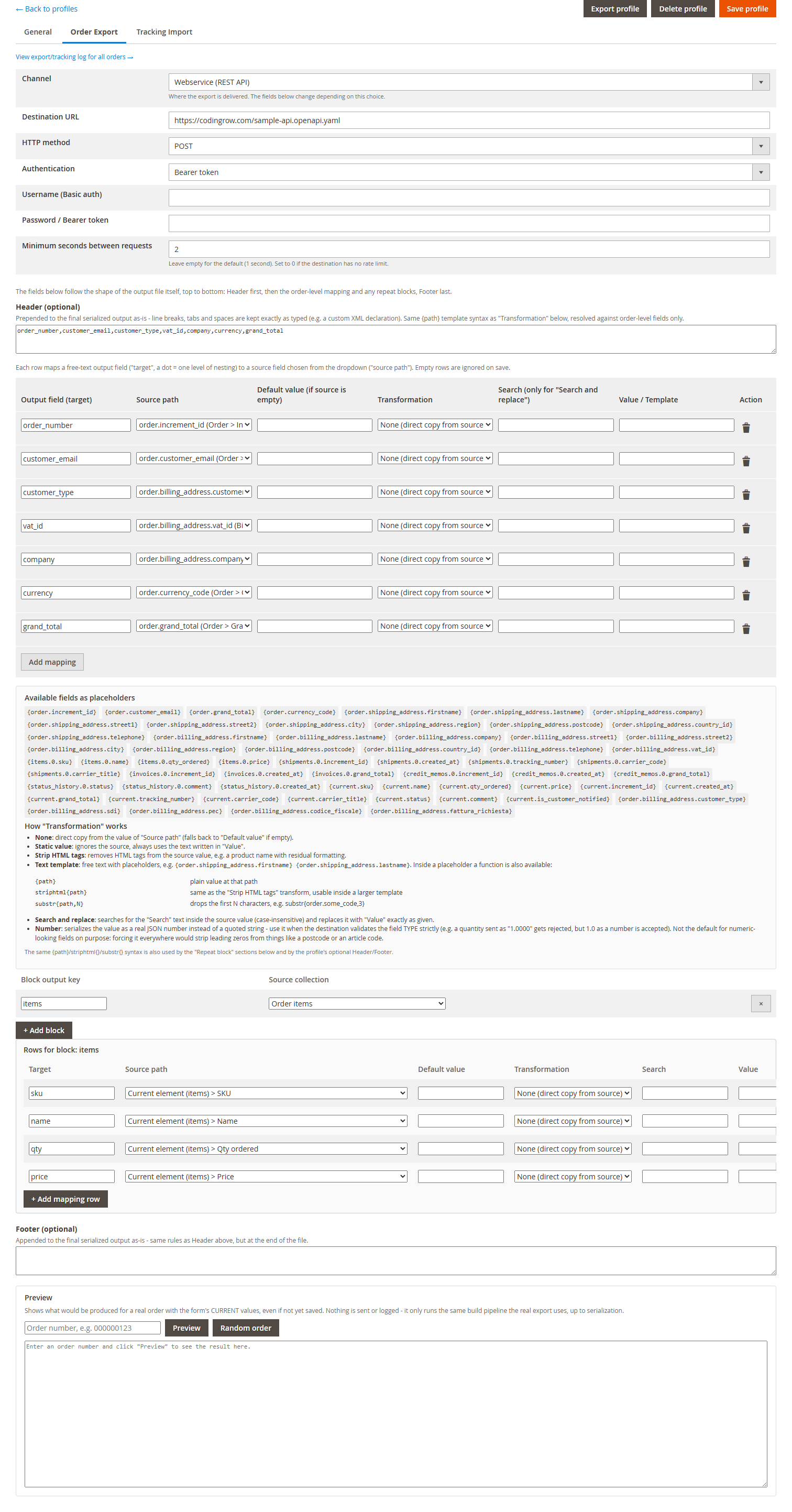
Shipping one order at a time through the admin works fine for a handful of orders a day, but it becomes a real bottleneck once you're processing dozens or hundreds of shipments, syncing tracking numbers back from a warehouse system, or exporting orders to a third-party fulfillment partner.
The Order Export & Tracking Import extension automates both directions of this workflow: it exports new orders in the format your fulfillment partner or ERP expects, and it imports tracking numbers in bulk via CSV, automatically creating shipments and triggering the native shipment emails for every matched order — no manual clicking through the Ship screen order by order.
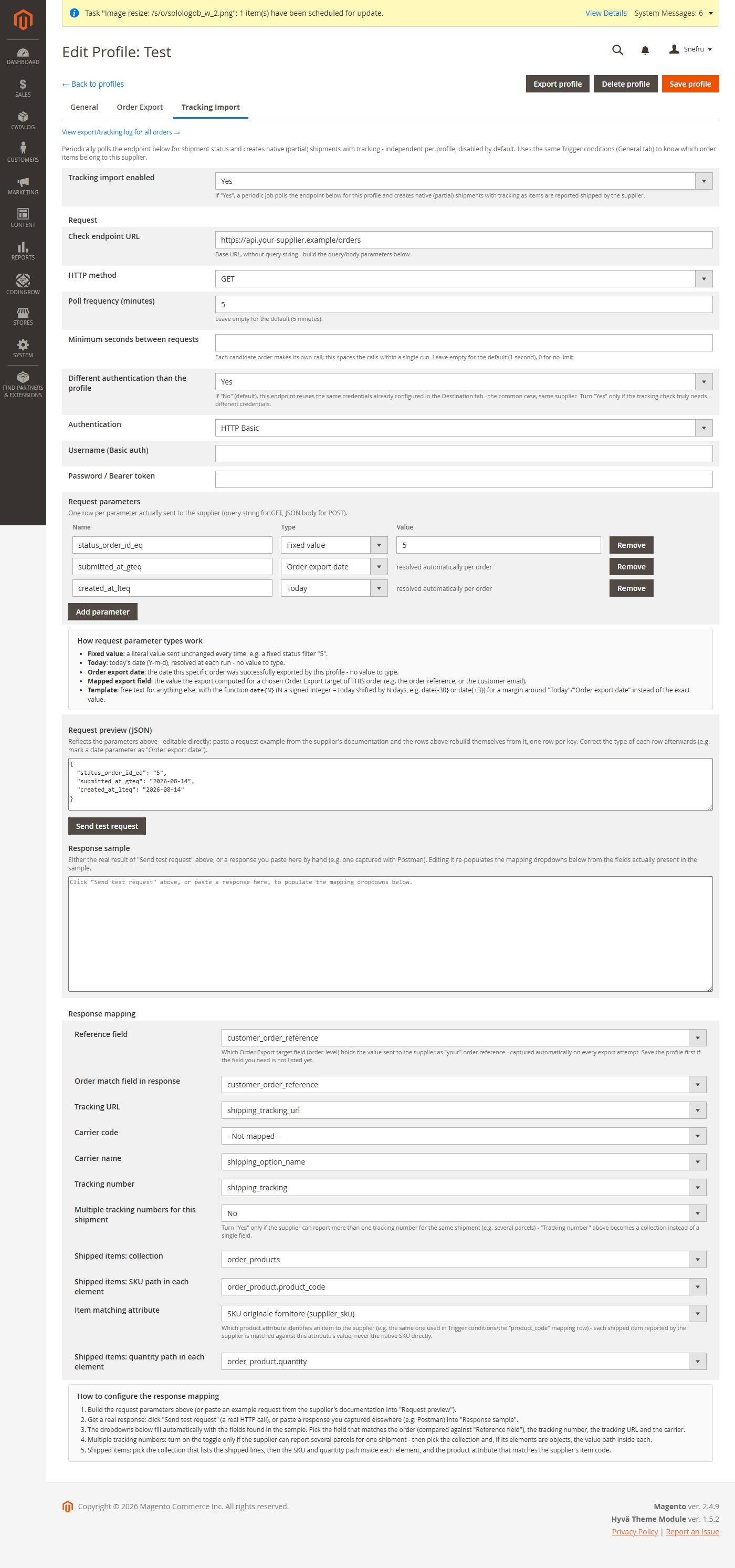
If you're regularly shipping in batches or working with an external logistics provider, it's worth setting up alongside the native configuration covered above.