Fulfilling orders through a warehouse, 3PL, or dropship supplier almost always means the same two headaches: getting order data out of Magento, and getting tracking numbers back in. This guide shows how to export orders and import tracking numbers in Magento 2 using only native admin tools, plus where those tools hit their limits.
- Export orders from the Sales grid with the right columns for your fulfillment partner
- Create shipments and attach tracking numbers to orders natively
- Trigger automatic shipment confirmation emails to customers
- Understand why bulk tracking import needs a workaround (and what that workaround looks like)
Step 1: Prepare the Orders grid for export
Before exporting, make sure the grid shows the columns your warehouse or 3PL actually needs.
Expect the grid to refresh instantly with the extra columns visible before you filter or export anything.
Step 2: Filter to only the orders you need
You rarely want to export every order ever placed — usually just orders awaiting fulfillment.
Expect the grid row count to drop to only the orders matching your fulfillment window.
Processing, Payment Review), filter and export each batch separately to avoid mixing shipments. Step 3: Export the filtered orders
With the grid filtered, use the built-in export function.
Expect Magento to generate a file containing exactly the columns currently displayed in the grid — nothing more.
Step 4: Send the file and collect tracking numbers
Once your fulfillment partner ships the orders, they typically return a spreadsheet with:
- Order number or increment ID
- Carrier name
- Tracking number
Keep this file organized — you'll need it for the next step, whether you enter tracking manually or via API.
Step 5: Create a shipment and add tracking manually
This is the core native workflow for importing tracking numbers into an order.
Expect a new tracking line to appear once you click Add Tracking Number; click Submit Shipment to finalize.
Email Copy of Shipment (checkbox on the same screen) so the customer automatically receives their tracking number without any extra step. Step 6: Repeat for each order — or script it
Doing this one order at a time works for small volumes, but it doesn't scale.
- For a handful of daily orders, manual entry via Sales›Orders is perfectly fine.
- For dozens or hundreds of shipments a day, manual entry becomes a bottleneck and a source of typos.
- Magento has no native bulk import screen for shipment tracking — this has to be built with the REST/SOAP API (
POST /V1/order/{orderId}/shipwith atracksarray) or a custom script.
Step 7: Verify shipments and tracking on the storefront
After adding tracking, confirm the customer-facing experience works as expected.
Expect the tracking number and carrier link to appear under the shipment details, and the order status to update to Complete (if fully shipped) or remain Processing (if partially shipped).
Checklist
- ☐ Orders grid columns configured for your fulfillment needs
- ☐ Orders filtered by status and date before exporting
- ☐ Export file sent to warehouse/3PL and tracking numbers received back
- ☐ Shipments created with correct carrier and tracking number
- ☐
Email Copy of Shipmentenabled so customers get notified - ☐ Storefront order page checked to confirm tracking displays correctly
If you process tracking for the same carrier every day, standardize the carrier name spelling in your fulfillment file — Magento's carrier dropdown expects an exact match or it falls back to Custom Value, which won't generate a trackable link for standard carriers.
Common mistakes
Exporting before filtering. Exporting the entire Orders grid and then hunting for the right rows in a spreadsheet wastes time — always filter by status and date first.
Forgetting partial shipments. If an order has multiple items shipped separately, each shipment needs its own tracking number; a single tracking field won't cover split shipments.
Using Custom Value for standard carriers. This disables the clickable tracking link on the storefront. Always match the carrier dropdown to a supported carrier when possible.
Re-exporting the same orders daily. Without a status or date filter, merchants often re-export orders already fulfilled, causing confusion in the warehouse.
FAQ
Can I export orders with full item and address details natively?
Only partially. The Sales grid export is limited to visible grid columns, so full line-item data, custom attributes, and split address fields usually require a dedicated export tool or custom code.
Does Magento have a native bulk import for tracking numbers?
No. Magento supports tracking numbers at the shipment level and exposes them through the API, but there is no built-in admin screen to import a CSV of tracking numbers in bulk.
What happens if I enter the wrong carrier for a tracking number?
The tracking number will still save, but the storefront may not generate a clickable tracking link, or it may point to the wrong carrier's tracking page.
Can customers see tracking numbers before the order ships?
No. Tracking information only appears in the customer account and order emails after a shipment has been created and submitted.
Is there a way to automate this without custom development?
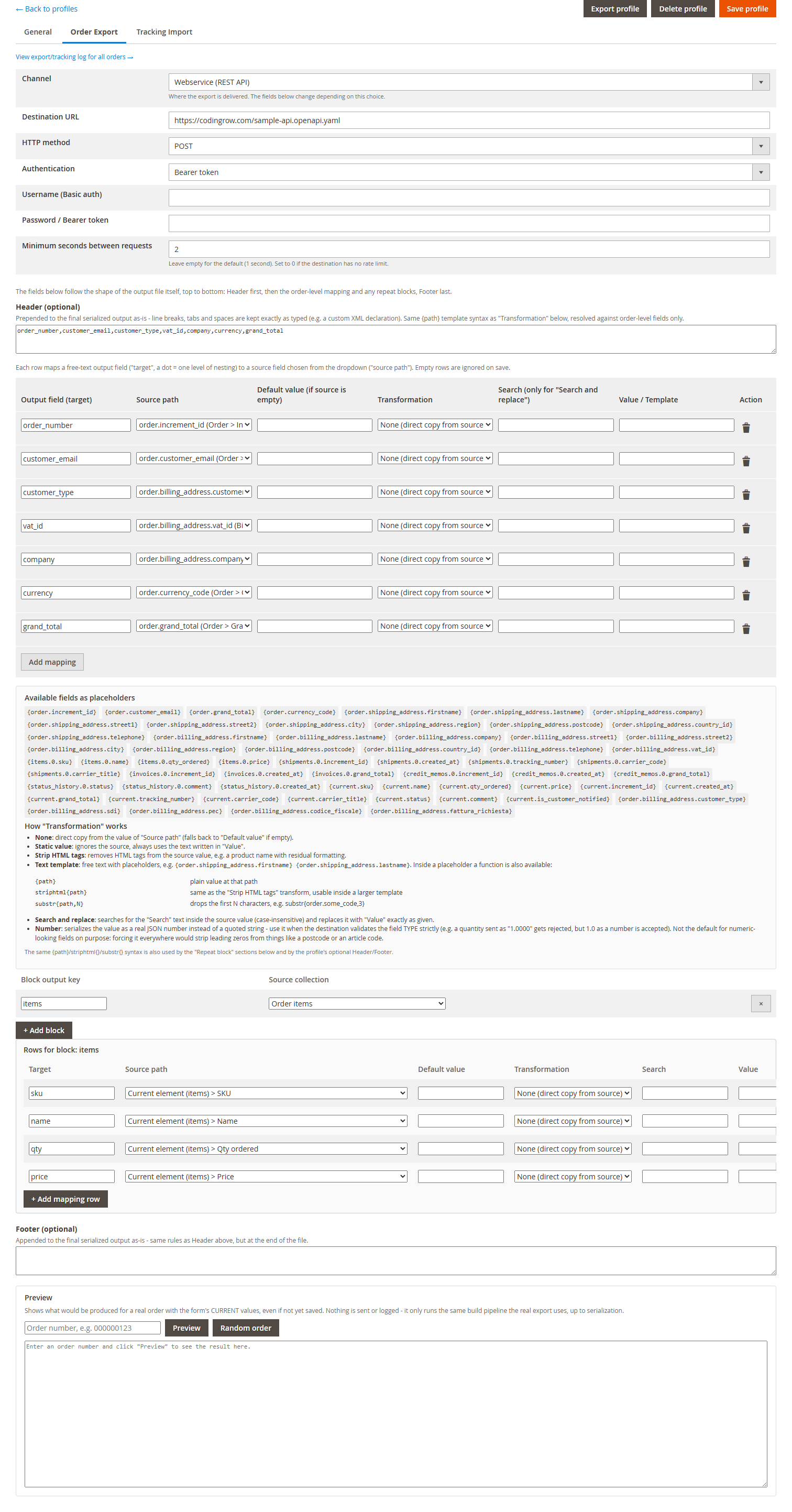
Yes — dedicated import/export tools can map order fields on export and read tracking spreadsheets back into Magento automatically, removing the need for manual shipment creation or custom API scripts.
A faster alternative
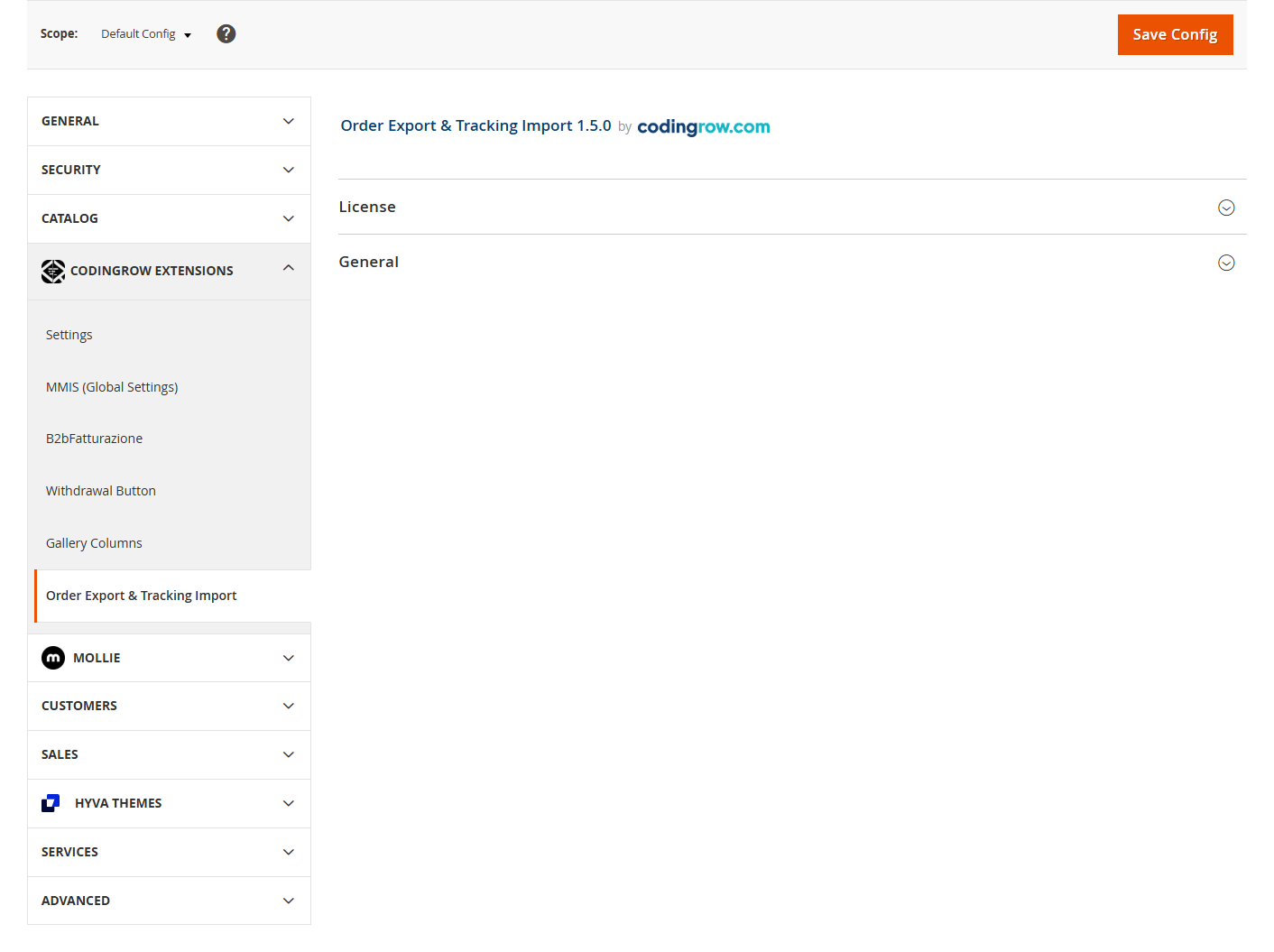
If your order volume makes manual exports and one-by-one tracking entry unmanageable, a dedicated tool can automate both directions of this workflow. Order Export & Tracking Import lets you configure order-level and item-level field mapping for exports, then automatically create shipments with tracking numbers from a return file — without writing any API scripts.