Bulk-loading a catalog is one of the first walls new Magento admins hit, especially when product photos refuse to show up after the import finishes. This guide walks you through how to import products with images in Magento 2 using only the native System›Data Transfer›Import tool, no third-party extension required.
- Prepare a valid CSV file with the correct columns for simple products and images
- Upload image files to the right server folder before running the import
- Run the import in
Check Datamode first to catch errors safely - Understand why images sometimes don't appear even after a successful import
Step 1: Export a sample file to copy the structure
Don't build your CSV from scratch — Magento's own export gives you the exact column headers it expects.
Click Continue and download the file. Open it in a spreadsheet tool and keep only a couple of sample rows plus the header row.
Step 2: Upload your images to the import media folder
Before Magento can attach images to products, the actual image files must already exist on the server.
- Connect via FTP/SFTP or the file manager of your hosting panel.
- Upload all product photos into
pub/media/import. - Use clean, unique file names (e.g.
sku12345-main.jpg) to avoid collisions.
pub/media/import folder is the default location Magento's importer scans for image files referenced in the CSV. If it doesn't exist, create it manually. Step 3: Fill in the CSV columns for images
Magento product import supports several image-related columns. The most commonly used are:
base_image— main product imagesmall_image— used in listing/cartthumbnail_image— used in mini-cart and gridsadditional_images— extra gallery photos, pipe-separated (|)
Example row values:
sku: 12345
base_image: sku12345-main.jpg
small_image: sku12345-main.jpg
thumbnail_image: sku12345-main.jpg
additional_images: sku12345-alt1.jpg|sku12345-alt2.jpgbase_image, small_image, and thumbnail_image when you don't have separate crops — Magento will simply reference the same physical file for all three roles. Step 4: Set the required product columns
Beyond images, every row needs the minimum viable attribute set or the import will be rejected.
product_websites is one of the most common reasons imported products stay invisible on the storefront even though the import reports success. Step 5: Run the import in Check Data mode
Never run a large file straight to Import — always validate first.
Click Check Data. Magento will scan the file and report errors, warnings, or a green "validation is successful" message.
Images File Directory field must point to the exact subfolder inside pub/media where you uploaded your photos — if you used a different folder name, update this field to match. Step 6: Fix validation errors before importing
Common validation issues include:
- Missing required attribute values for the chosen attribute set
- Invalid category paths (typos, missing parent category)
- Duplicate SKUs within the same file
- Image file names in the CSV that don't match anything in the upload folder
Correct the CSV, re-upload, and re-run Check Data until you see zero errors.
Step 7: Import for real
Once validation passes cleanly, click Import.
Magento processes the file and shows a summary: number of entities created, updated, or skipped.
Step 8: Verify images on the storefront
After import, spot-check a few products.
Open a product and check the Images and Videos section — the uploaded photos should already be linked. If they're missing:
- Confirm the file names in the CSV exactly match the uploaded files (case-sensitive on Linux servers).
- Re-run
bin/magento indexer:reindexand flush the cache. - Check file permissions on
pub/mediaallow the web server to read the new images.
Checklist
- ☐ Sample CSV exported and trimmed to needed columns
- ☐ Images uploaded to
pub/media/import(or matching custom folder) - ☐
sku,product_websites,attribute_set_code, andcategoriesfilled correctly - ☐ Image columns (
base_image,small_image,thumbnail_image,additional_images) match uploaded file names - ☐
Check Datarun with zero errors before the real import - ☐ Cache flushed and reindex run after import
- ☐ Spot-checked products on the storefront show images
Keep a master "template" CSV with correct headers saved locally — reuse it for every future import instead of re-exporting from Magento each time.
Common mistakes
Images referenced in CSV but never uploaded to the server. Magento can't fetch remote URLs by default in the native importer — the files must physically exist in the media import folder before you run the import.
Product created but invisible on the frontend. Usually caused by a missing or wrong product_websites value, or visibility left as Not Visible Individually.
Category path typos. A single character difference between categories in the CSV and an existing category creates a new, duplicate category tree instead of assigning the product to the intended one.
Running the full import without validating first. Skipping Check Data on a large file often means discovering hundreds of errors only after the import has already partially run.
FAQ
Can Magento import images directly from a URL?
The native importer expects image files to already exist in the server's pub/media/import folder (or the directory you specify); it does not download images from external URLs on its own.
What happens if I import the same SKU twice?
With Add/Update behavior, Magento updates the existing product's fields, including images, rather than creating a duplicate — as long as the SKU matches exactly.
Why do my additional images not appear in order?
The order in the additional_images column (pipe-separated) generally reflects gallery order, but you can fine-tune positions afterward from the product edit page.
Can I update only prices without touching images?
Yes — build a CSV with just sku and price columns and use Add/Update behavior; columns you omit are left untouched on existing products.
Is there a file size or row limit for CSV import?
Magento doesn't impose a hard row limit, but very large files can hit PHP memory or execution time limits on shared hosting, so splitting into batches is safer.
A faster alternative
The native importer works well for one-off catalog loads, but it becomes tedious when you need to pull product data and images from a supplier feed on a recurring schedule, remap changing column names, or handle image galleries automatically without rebuilding the CSV every time.
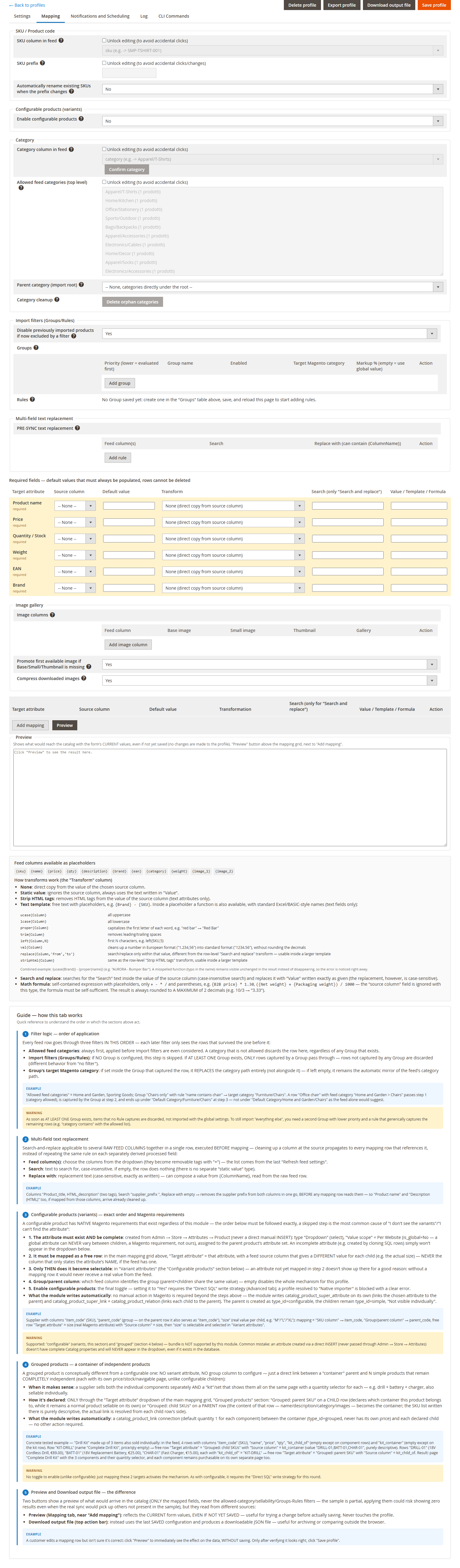
For stores that need scheduled, mapped, and repeatable imports — including automatic image gallery handling straight from a supplier feed — the MMIS product import automation for Magento 2 lets you configure the mapping once and let recurring imports run without touching a CSV file again.